

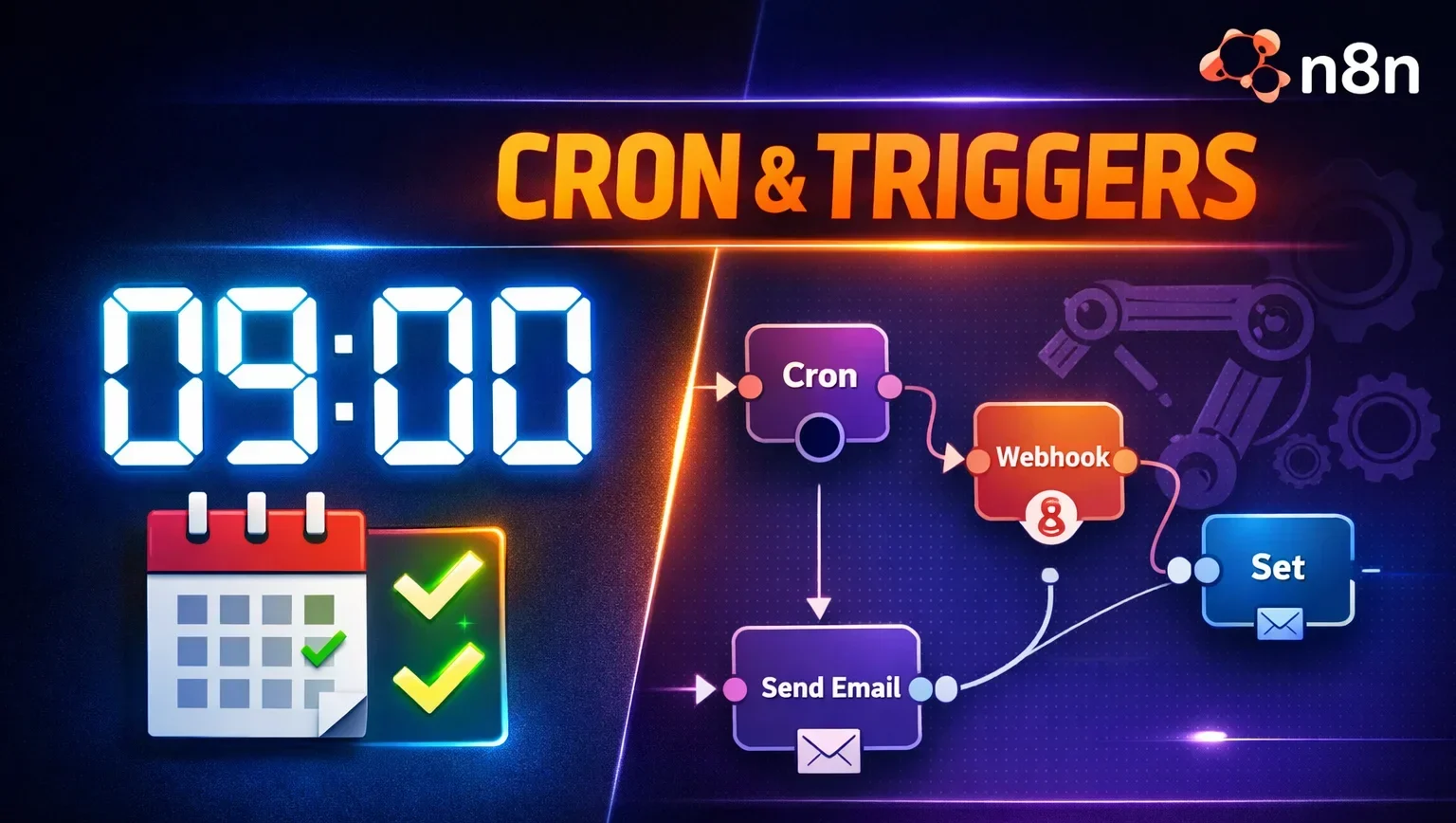
Imagine waking up to find your daily reports already sent, your databases backed up automatically, and your website monitored 24/7—all without lifting a finger. That’s the power of n8n scheduling.
In this comprehensive tutorial, you’ll learn how to schedule n8n workflows using cron jobs and triggers, transforming manual tasks into automated processes that run precisely when you need them.
Table of Contents
- What are Cron Jobs?
- Understanding Triggers in n8n
- Cron Syntax Explained
- Schedule Trigger Node Guide
- Practical Example: Daily Weather Alerts
- Real-World Use Cases
- Conclusion
What are Cron Jobs?
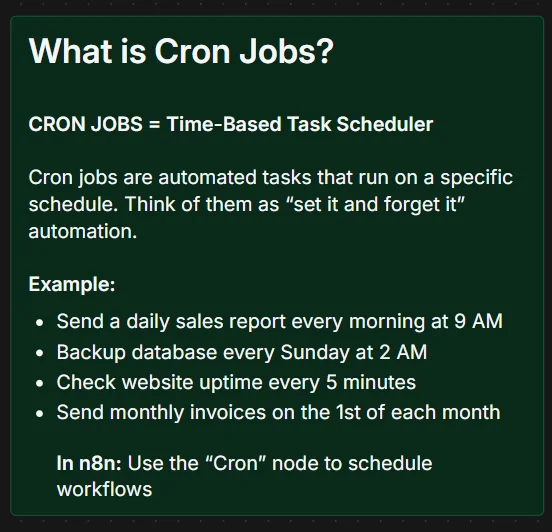
Cron jobs are time-based task schedulers that automatically execute workflows at specific intervals. Think of them as your digital assistant that never forgets and never sleeps.
Real-World Examples of Cron Jobs:
- Daily sales reports sent every morning at 9 AM
- Database backups performed every Sunday at 2 AM
- Website uptime checks running every 5 minutes
- Monthly invoices generated on the 1st of each month
In n8n, you use the Cron node to schedule workflows. Once configured and published, these workflows run automatically in the background—no manual intervention required.
Understanding Triggers in n8n
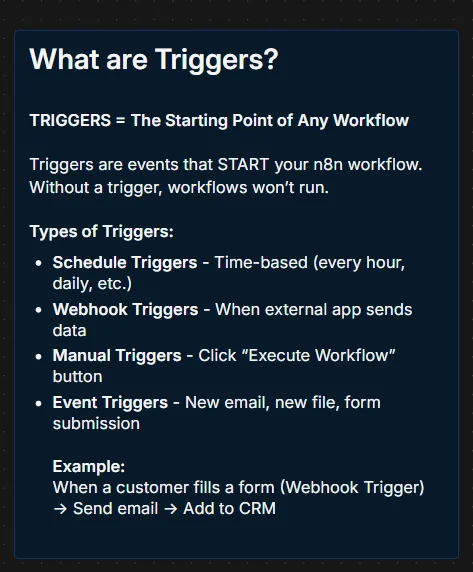
Triggers are the starting point of every n8n workflow. Without a trigger, your workflow sits idle. With the right trigger, your automation springs into action automatically.
Types of Triggers:
- Schedule Triggers – Time-based execution (every hour, daily, weekly)
- Webhook Triggers – Activated when external apps send data
- Manual Triggers – Executed by clicking “Execute Workflow” button
- Event Triggers – Triggered by events like new emails, file uploads, or form submissions
Practical Example:
When a customer fills out a contact form (Webhook Trigger) → Send confirmation email → Add contact to CRM → Notify sales team on Slack
The beauty of triggers: They eliminate the need to constantly monitor systems. Your workflows respond instantly to events or run automatically on schedule.
Cron Syntax Explained: The 5-Position Format {#cron-syntax-explained}
Cron syntax might look intimidating at first, but it’s actually quite logical once you understand the pattern.
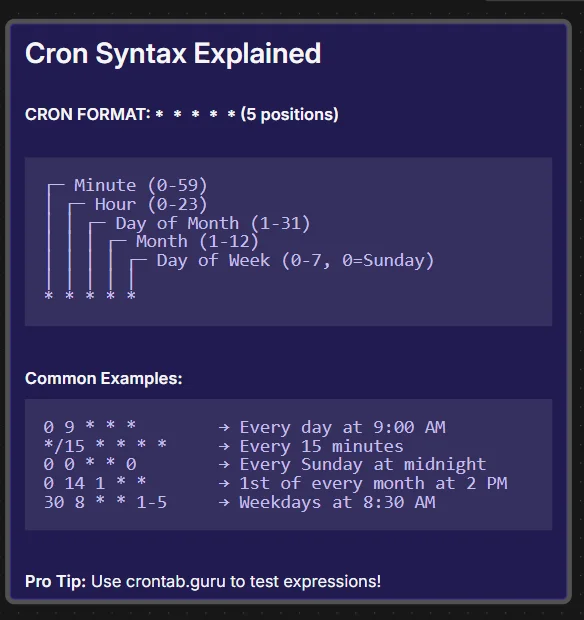
The Cron Format: * * * * *
┌─────── Minute (0-59)
│ ┌───── Hour (0-23)
│ │ ┌─── Day of Month (1-31)
│ │ │ ┌─ Month (1-12)
│ │ │ │ ┌ Day of Week (0-7, 0=Sunday)
│ │ │ │ │
Common Cron Examples:
| Cron Expression | Meaning |
|---|---|
| 0 9 * * * | Every day at 9:00 AM |
| */15 * * * * | Every 15 minutes |
| 0 0 * * 0 | Every Sunday at midnight |
| 0 14 1 * * | 1st of every month at 2 PM |
| 30 8 * * 1-5 | Weekdays at 8:30 AM |
Pro Tip: Use crontab.guru to test and validate your cron expressions before implementing them in n8n.
Understanding Special Characters:
- * = Every (e.g., every minute, every day)
- */15 = Every 15 units (e.g., every 15 minutes)
- 1-5 = Range (e.g., Monday through Friday)
- 1,15,30 = Specific values (e.g., 1st, 15th, and 30th)
Schedule Trigger Node: User-Friendly Time Scheduling {#schedule-trigger-node}
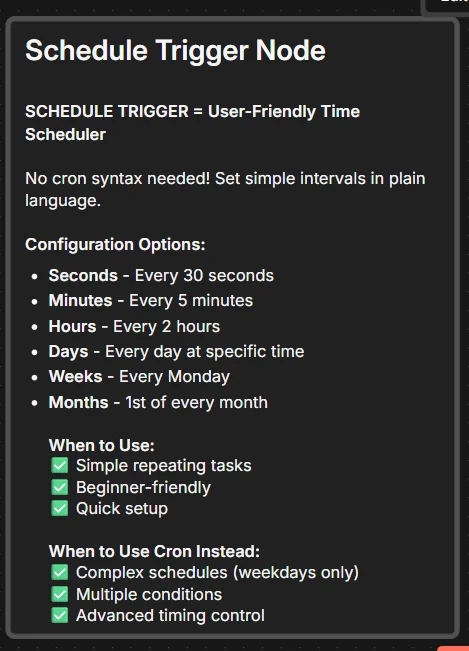
Not comfortable with cron syntax? The Schedule Trigger node offers a beginner-friendly alternative.
Configuration Options:
- Seconds – Execute every 30 seconds
- Minutes – Run every 5 minutes
- Hours – Trigger every 2 hours
- Days – Execute daily at a specific time
- Weeks – Run every Monday
- Months – Trigger on the 1st of every month
When to Use Schedule Trigger:
✅ Simple repeating tasks
✅ Beginner-friendly setup
✅ Quick configuration without syntax knowledge
When to Use Cron Instead:
✅ Complex schedules (weekdays only, specific combinations)
✅ Multiple timing conditions
✅ Advanced timing control
Example Setup:
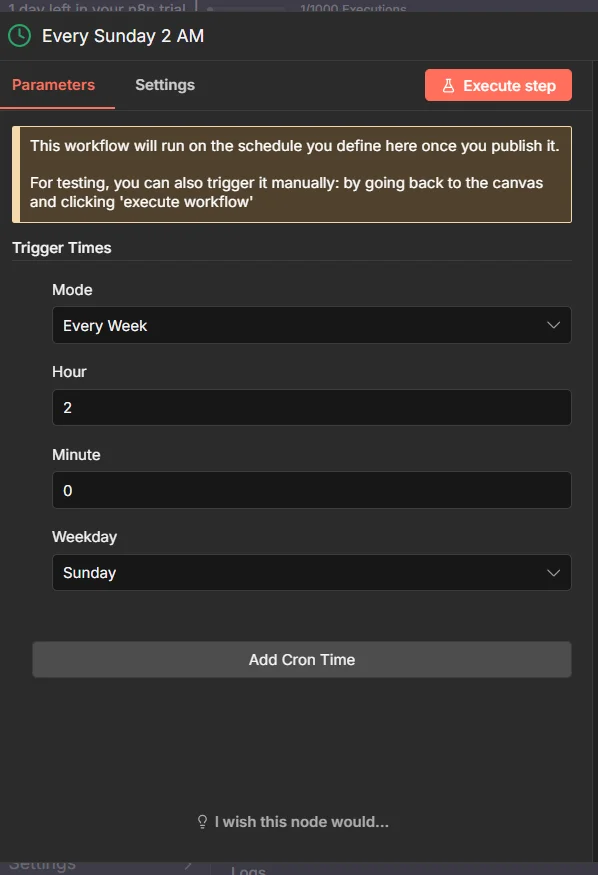
For a daily report at 10:30 AM:
- Mode: “Days”
- Hour: 10
- Minute: 30
Practical Example: Daily Weather Report to Slack {#practical-example}
Let’s build a real automation that sends weather updates to your team’s Slack channel every morning.
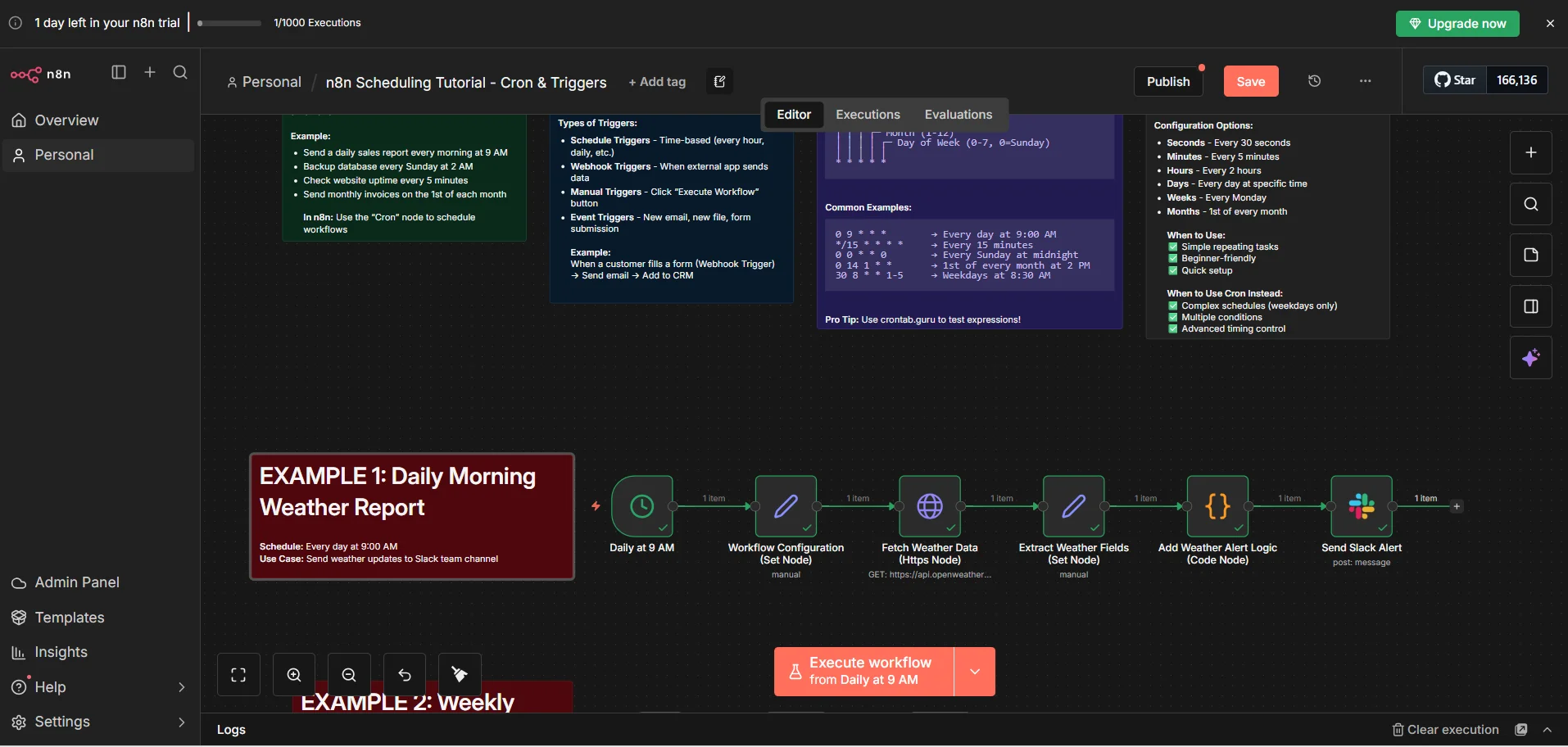
Workflow Overview:
Workflow Steps:
- Cron Trigger – Scheduled for 9:00 AM daily
- HTTP Request – Fetches weather data from OpenWeatherMap API
- Code Node – Extracts and formats weather information
- Slack Node – Sends formatted message to team channel
Step 1: Configure the Cron Node
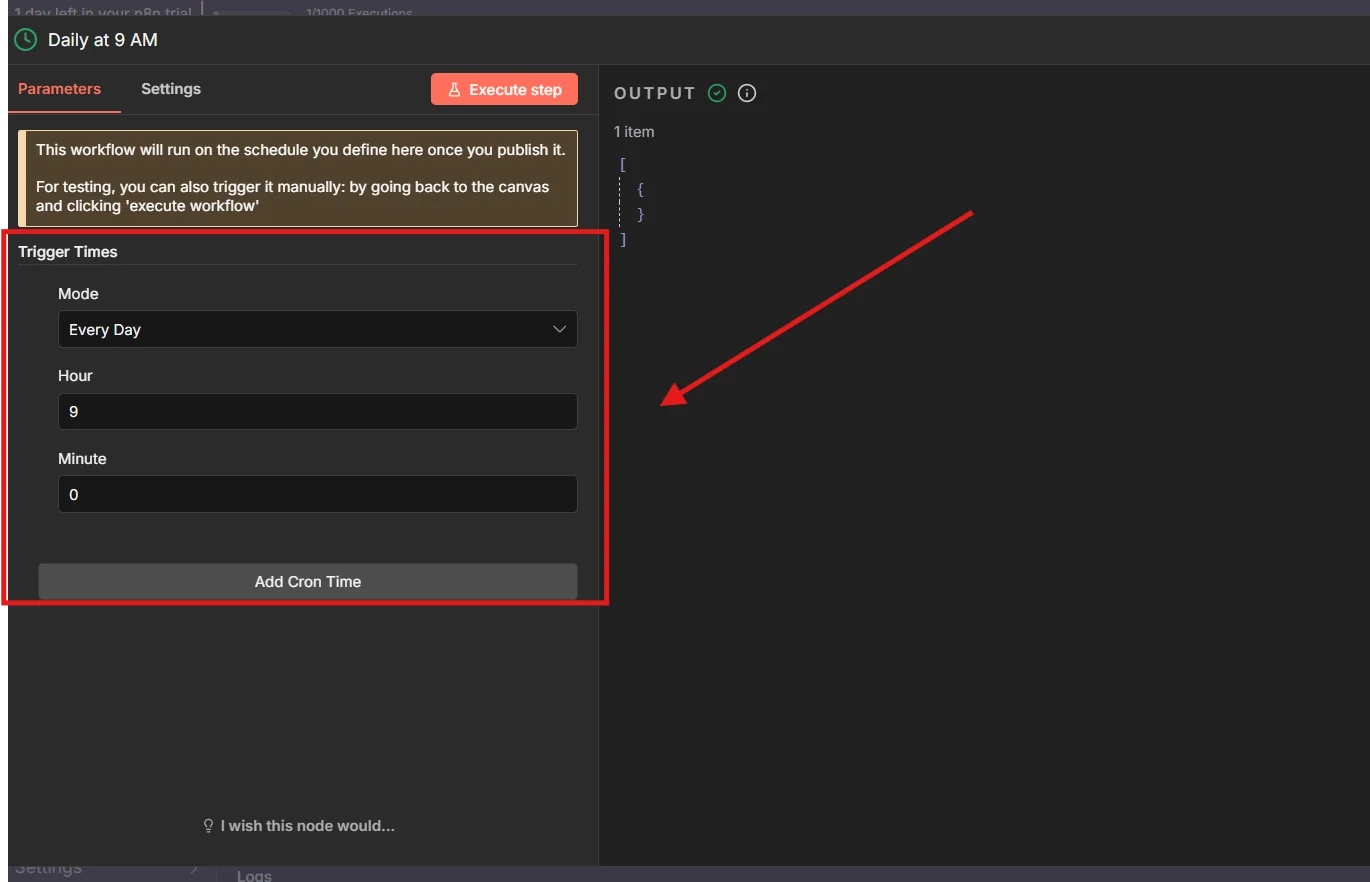
Set the cron expression to 0 9 * * * for daily execution at 9:00 AM.
Step 2: Fetch Weather Data
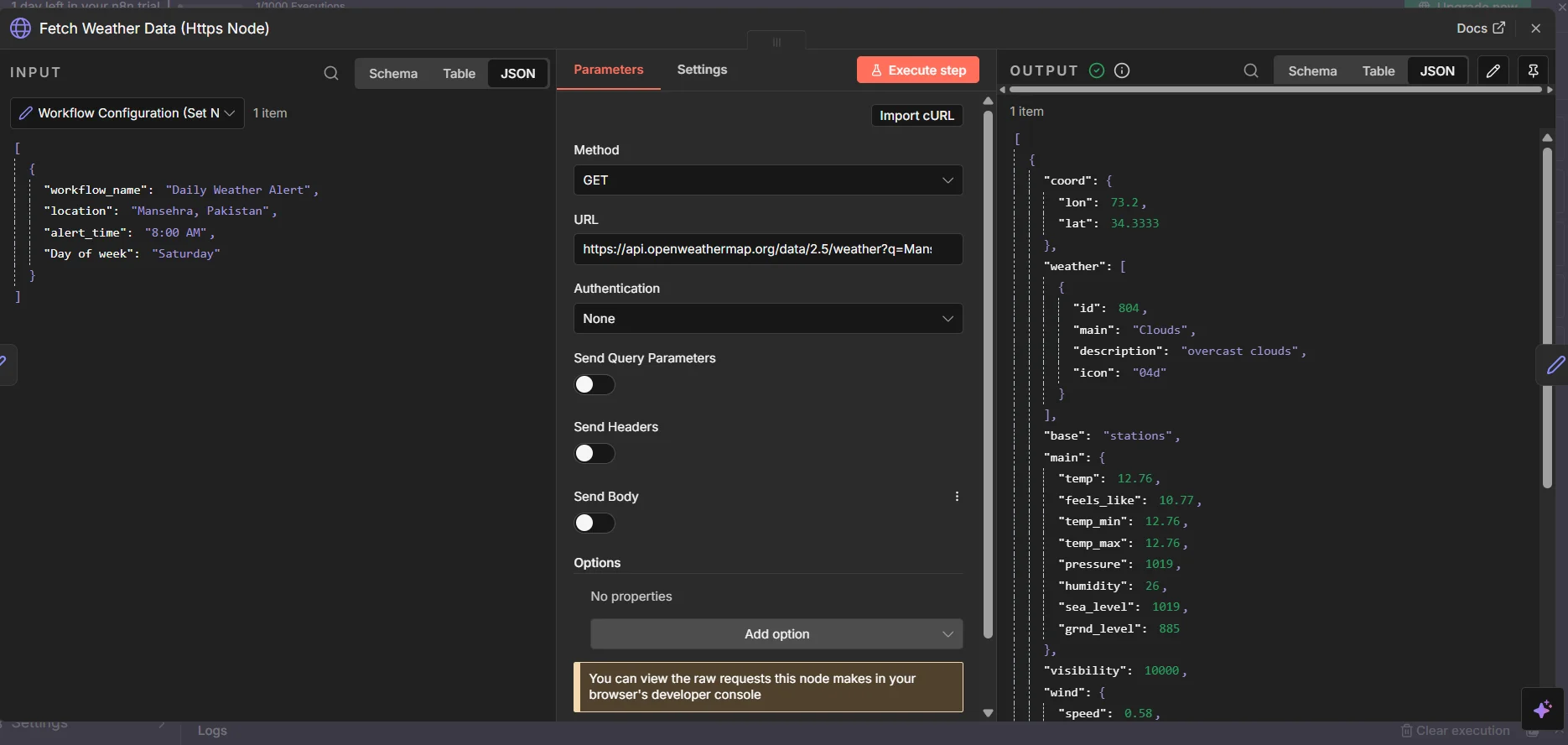
Configure the HTTP Request node:
- URL: https://api.openweathermap.org/data/2.5/weather
- Method: GET
- Query Parameters:
- q: Rawalpindi (or your city)
- units: metric
- appid: YOUR_API_KEY
The API returns comprehensive weather data including temperature, humidity, conditions, and more.
Step 3: Send to Slack
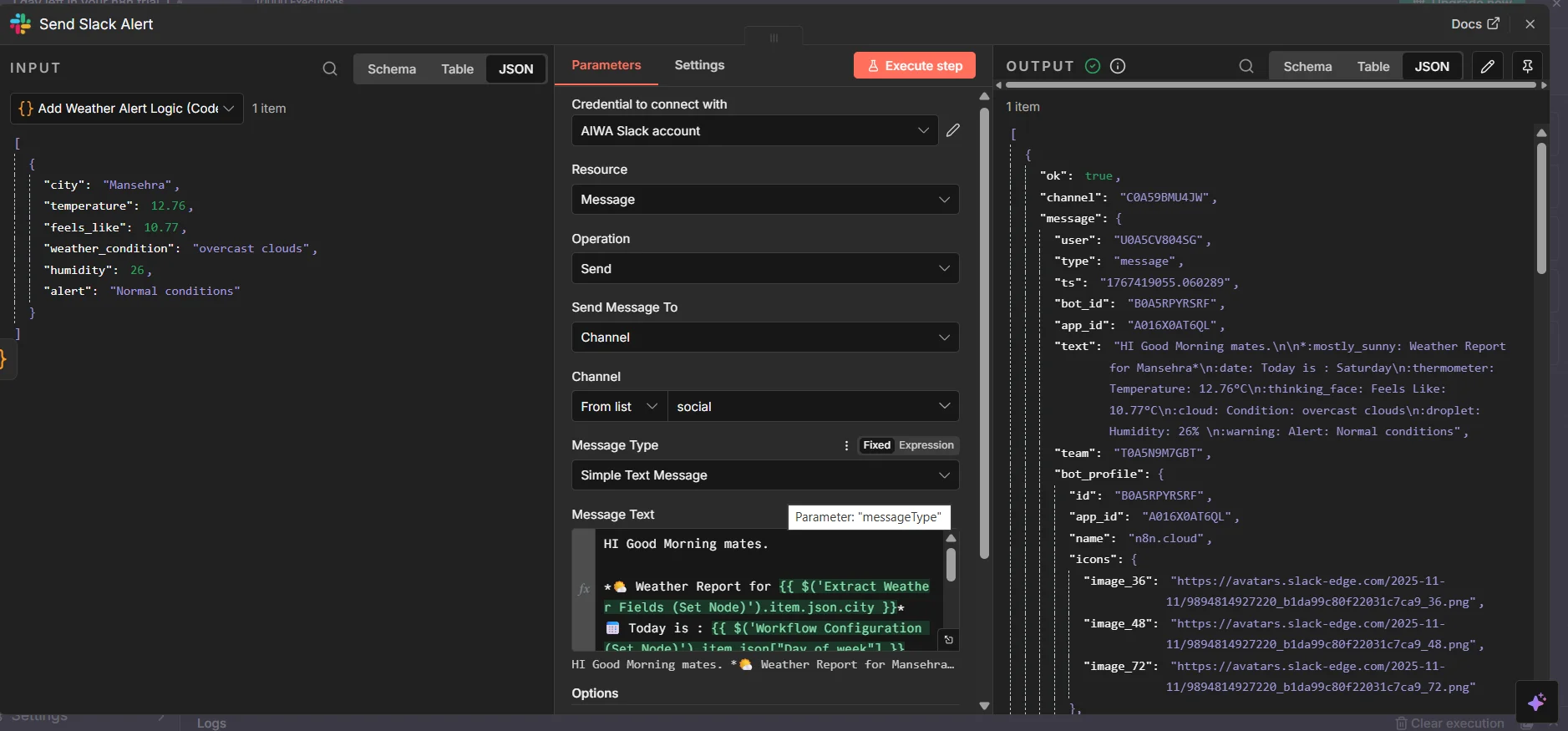
Configure the Slack node with a formatted message:
🌤️ Daily Weather Report for {{ $(‘Workflow Configuration (Set Node)’).item.json.Day_of_week }}
📍 Location: {{ $json.name }}
🌡️ Temperature: {{ $json.main.temp }}°C
🤔 Feels Like: {{ $json.main.feels_like }}°C
☁️ Condition: {{ $json.weather[0].description }}
💧 Humidity: {{ $json.main.humidity }}%
⚠️ Alert: {{ $(‘Add Weather Alert Logic (Code Node)’).item.json.alert }}
Have a great day! 😊
Execution Success
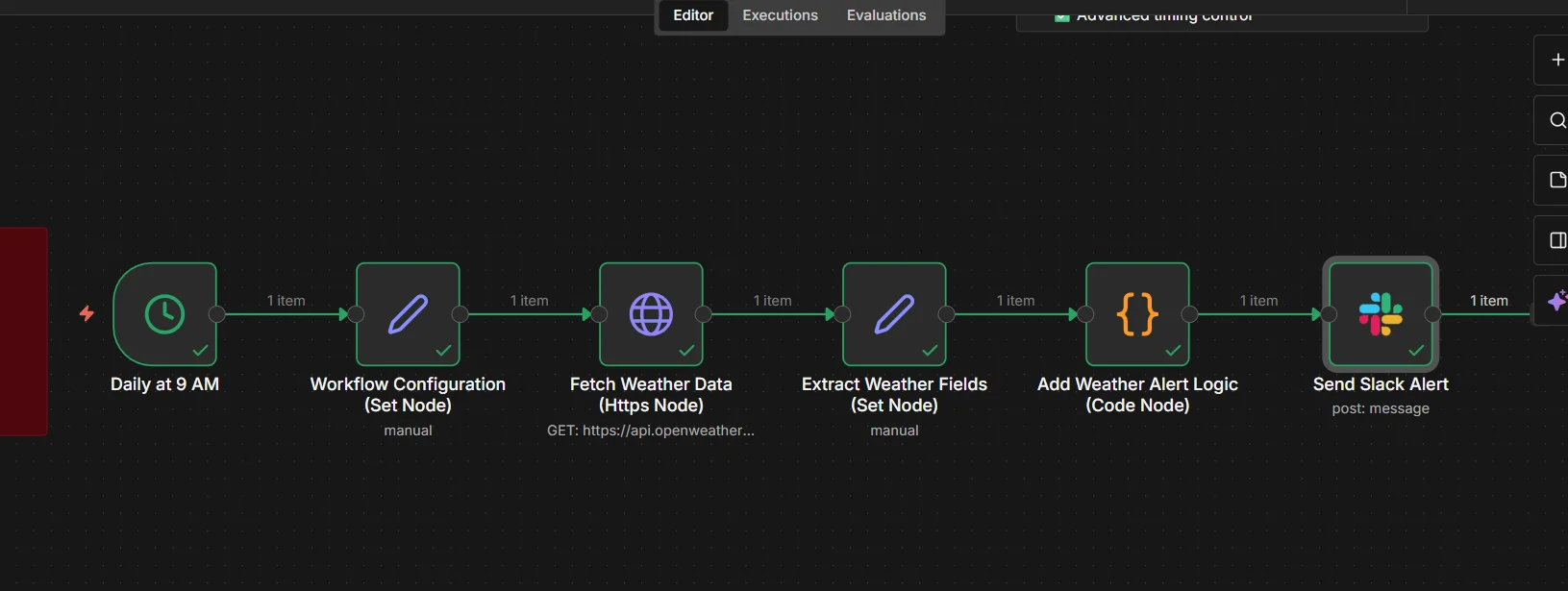
Once executed, all nodes show green checkmarks, confirming the weather data was fetched and sent to Slack successfully.
What I love about this: The workflow runs completely automatically. Your team gets fresh weather updates every morning without anyone having to check and send them manually.
Real-World Use Cases: 4 Automation Examples {#use-cases}
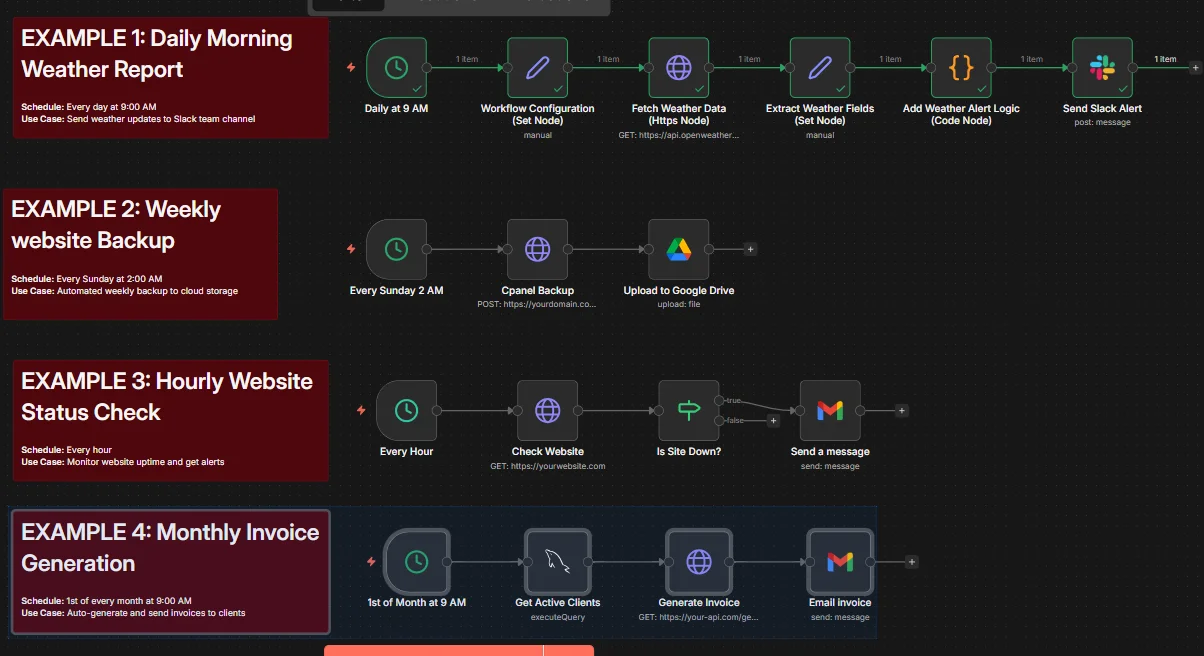
Example 1: Daily Morning Weather Report ✅
Schedule: Every day at 9:00 AM
Use Case: Automated weather updates to Slack
Business Value: Team stays informed about daily conditions
Example 2: Weekly Database Backup
Schedule: Every Sunday at 2:00 AM
Nodes Used:
- Cron Trigger (0 2 * * 0)
- Execute Command (mysqldump)
- Google Drive Upload
What’s Amazing: Your critical data is automatically backed up weekly to cloud storage. If disaster strikes, you have recent backups ready to restore.
Example 3: Hourly Website Monitoring
Schedule: Every hour
Workflow:
- Schedule Trigger (every hour)
- HTTP Request (check website)
- IF node (check status code)
- Email Alert (if site is down)
Why It Matters: Downtime costs money. This workflow alerts you within an hour if your website becomes unreachable, minimizing revenue loss.
Example 4: Monthly Invoice Generation
Schedule: 1st of every month at 9:00 AM
Workflow:
- Cron Trigger (0 9 1 * *)
- MySQL Query (get active clients)
- HTTP Request (generate invoice)
- Email Send (with PDF attachment)
Business Impact: Invoicing happens automatically. No more scrambling on the 1st of the month to send out bills.
Best Practices for n8n Scheduling
- Test Before Publishing : Always test your scheduled workflows manually before activating them. Click “Execute Workflow” to verify everything works correctly.
- Consider Timezone Settings : n8n uses your server’s timezone. Ensure your cron schedules account for timezone differences if you’re working across regions.
- Add Error Handling : Include error notification nodes so you’re alerted if a scheduled workflow fails.
- Monitor Execution History : Regularly check the “Executions” tab to ensure your scheduled workflows are running as expected.
- Avoid Overlapping Executions : If a workflow might take longer than the interval between executions, add safeguards to prevent multiple instances from running simultaneously.
- Use Meaningful Workflow Names: Name your workflows descriptively: “Daily Sales Report – 9 AM” is better than “Workflow 1”.
Common Issues and Solutions
Issue: Workflow doesn’t run at scheduled time
Solution: Ensure the workflow is published (active state). Unpublished workflows won’t execute automatically.
Issue: Cron expression not working as expected
Solution: Verify your cron syntax at crontab.guru. Remember n8n uses 5-position cron format.
Issue: Missing data in scheduled execution
Solution: Check that all required credentials are saved and nodes are properly configured with static values (not dependent on manual input).
Conclusion
n8n scheduling transforms how you approach workflow automation. By mastering cron jobs and triggers, you can:
✅ Eliminate repetitive manual tasks
✅ Ensure critical processes run on time, every time
✅ Free up hours each week for strategic work
✅ Build reliable, automated business systems
Key Takeaways:
- Cron jobs provide precise, time-based scheduling with powerful syntax
- Schedule Triggers offer a user-friendly alternative for simple intervals
- Proper planning and testing ensure smooth automated operations
- Real-world applications range from daily reports to monthly invoicing
The examples we covered—weather reports, database backups, website monitoring, and invoice generation—are just the beginning. The same principles apply to countless other automation scenarios.
Ready to implement scheduling in your workflows? Download the complete workflow JSON and import it directly into your n8n instance to get started.
What automation will you build next? Share your scheduled workflow ideas in the comments below!
Download Resources
📥 Workflow JSON File: n8n-scheduling-tutorial-cron-triggers.json
🔗 Helpful Links:
- Crontab Guru – Test cron expressions
- n8n Documentation – Official n8n docs
- OpenWeatherMap API – Free weather data