

Your workflow works perfectly during testing. You submit a few test forms, everything flows smoothly—webhook receives data, email gets validated, Slack pings your team, lead saves to Google Sheets. Life is good.
Then 2 AM hits on a Tuesday, and your Abstract API decides to timeout. The entire workflow stops dead. That potential customer who just filled out your contact form? Gone. No notification, no database entry, no second chance.
This happened to me last week. Spent an hour building what I thought was a solid lead capture system, only to watch it fail spectacularly when one API endpoint returned an error. Everything stopped. The lead was lost.
So I rebuilt it—this time with proper error handling. Here’s exactly how I did it, and why your n8n workflows need this too.
Why Most n8n Workflows Are Fragile?
Here’s the uncomfortable truth: most automation workflows are one API error away from complete failure.
You build a workflow that connects five different services. Looks great on the canvas—clean nodes, logical flow, perfect connections. But production doesn’t care about your perfect canvas. APIs timeout. Services go down. Rate limits get hit. Credentials expire.
Without error handling, a single failed node kills your entire workflow. It’s like building a house where one broken lightbulb means the whole electrical system shuts down.
I learned this the hard way. Built a lead processing workflow for a client, tested it three times, deployed it confidently. First real lead comes through with a typo in their email address—workflow crashed. Client missed the lead. Not a great look.
What We’re Building Today
I’m going to walk you through building a production-ready lead processing system with comprehensive error handling. This isn’t a toy example—this is the kind of setup you’d actually use in a real business.
Here’s what it does:
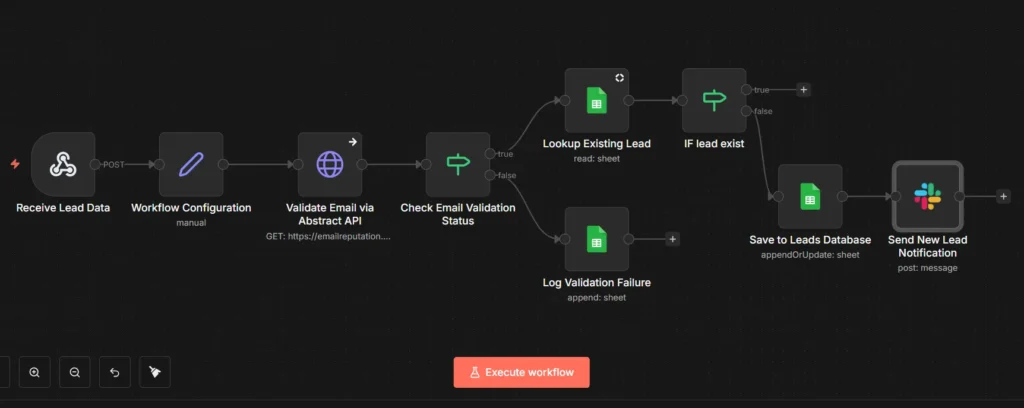
- Receives lead submissions from a WPForms contact form via webhook
- Validates email addresses using Abstract API
- Checks for duplicate leads in Google Sheets
- Sends Slack notifications to your team
- Saves validated leads to a database
But here’s the important part: when things fail (and they will), the workflow adapts. Invalid emails get logged for manual review. API errors get tracked. Your team gets alerted. And most importantly—leads don’t get lost.
The Problem: Workflows Without Error Handling
Let me show you what happens without error handling.
I intentionally broke my workflow by changing the Abstract API endpoint to the wrong URL. Simple typo—happens all the time in real projects. Then I submitted a test lead from my contact form.
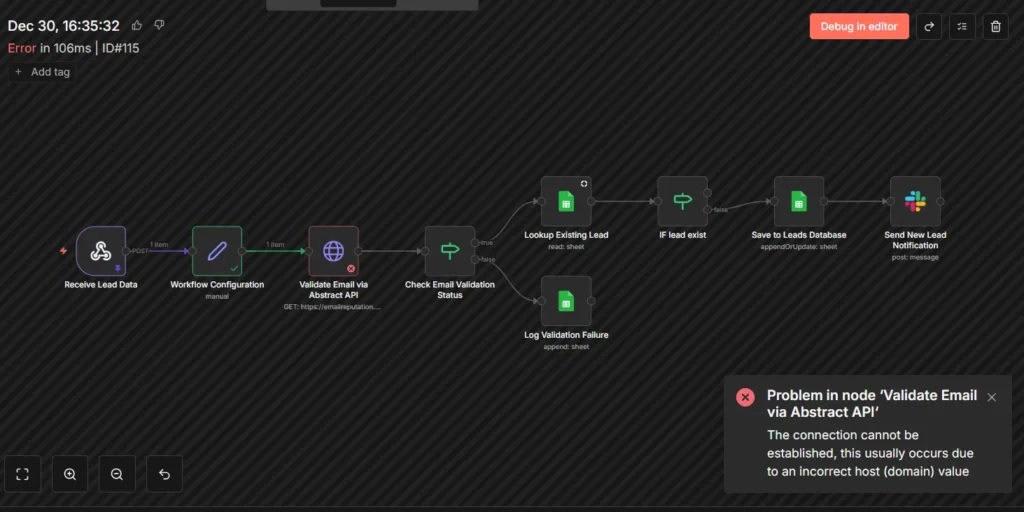
See that red X? The validation node failed. But look at what didn’t happen:
- No Slack notification sent
- Nothing saved to Google Sheets
- Lead data completely lost
- No alert that anything went wrong
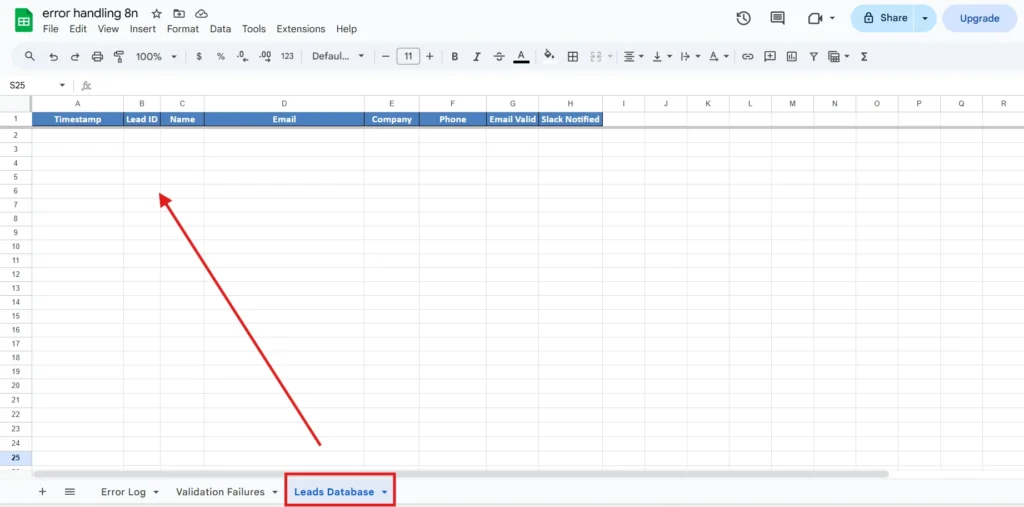
In production, this means lost customers. Your sales team has no idea a lead came through. The person who filled out your form gets no response. They move on to your competitor.
One small failure destroyed the entire workflow.
Building the Error Logger Workflow
The solution is a separate Error Logger workflow that catches failures from any workflow in your n8n instance.
Here’s the beautiful part: you build this once, and it protects all your workflows automatically. Any workflow fails? Error Logger catches it, logs it, and alerts you.
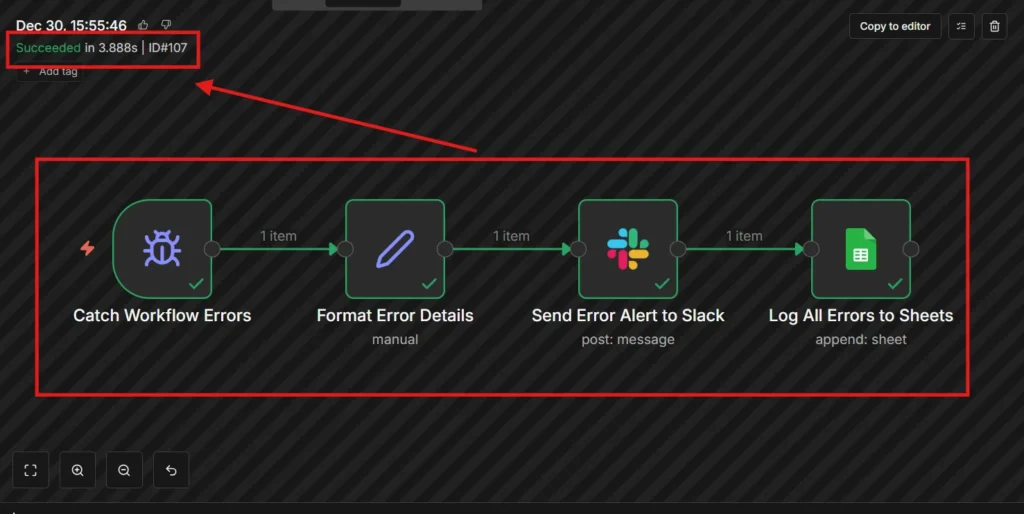
Four simple nodes that make your entire n8n setup bulletproof:
Node 1: Catch Workflow Errors (Error Trigger)
This is the magic. The Error Trigger node automatically activates whenever ANY workflow in your n8n instance fails. You don’t call it—n8n calls it for you when things break.
I initially thought you had to manually connect this to your workflows. Nope. Just having an active Error Trigger workflow is enough. It monitors everything.
Node 2: Format Error Details
When an error happens, n8n gives you a ton of information. But it’s messy. This Set node extracts the useful bits and formats them cleanly.
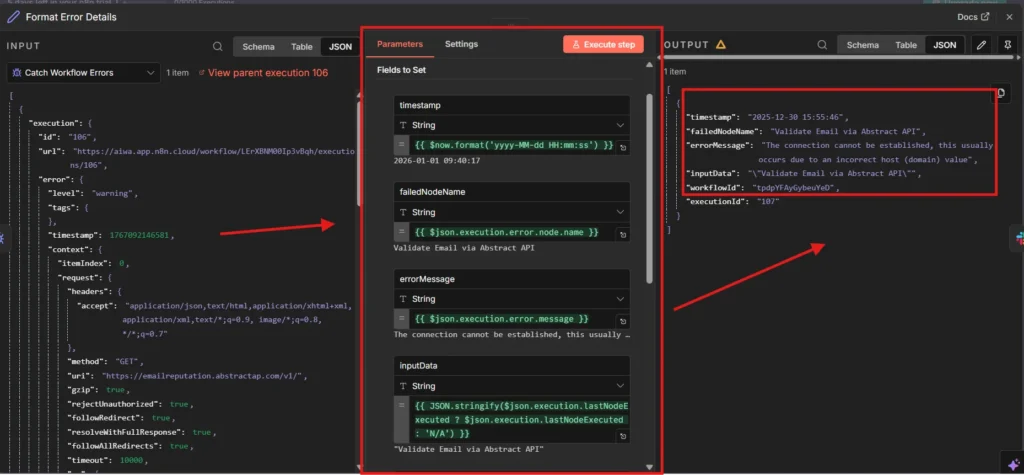
Here’s what I’m capturing:
- timestamp: When the error occurred (formatted as
yyyy-MM-dd HH:mm:ss) - failedNodeName: Which specific node broke
- errorMessage: What went wrong
- inputData: The data that caused the issue
- workflowId: Which workflow failed
- executionId: Unique ID for tracking
This took me a few tries to get right. First attempt, I was trying to capture too much data and the logs were unreadable. Stripped it down to just these six fields—exactly what you need for debugging, nothing more.
Node 3: Send Error Alert to Slack
Real-time notifications to your team. The second something breaks, everyone knows.
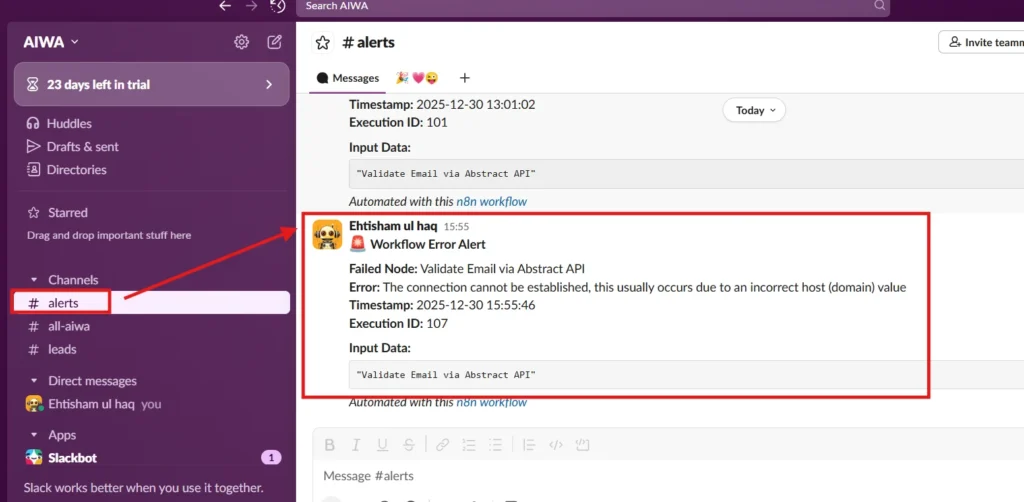
I’m sending this to a dedicated #alerts channel. Format is clean and scannable:
🚨 Workflow Error Alert
- Failed Node: Validate Email via Abstract API
- Error: The connection cannot be established, this usually occurs due to an incorrect host (domain) value
- Timestamp: 2025-12-30 15:55:46
- Execution ID: 107
Input Data: “Validate Email via Abstract API”
My team sees this instantly on mobile. No more discovering errors hours later when someone asks “why haven’t we gotten any leads today?”
Node 4: Log All Errors to Sheets
Slack alerts are great for immediate response. But you also need a permanent record for pattern analysis.
Every error gets logged to an “Error Log” sheet in Google Sheets with full context:
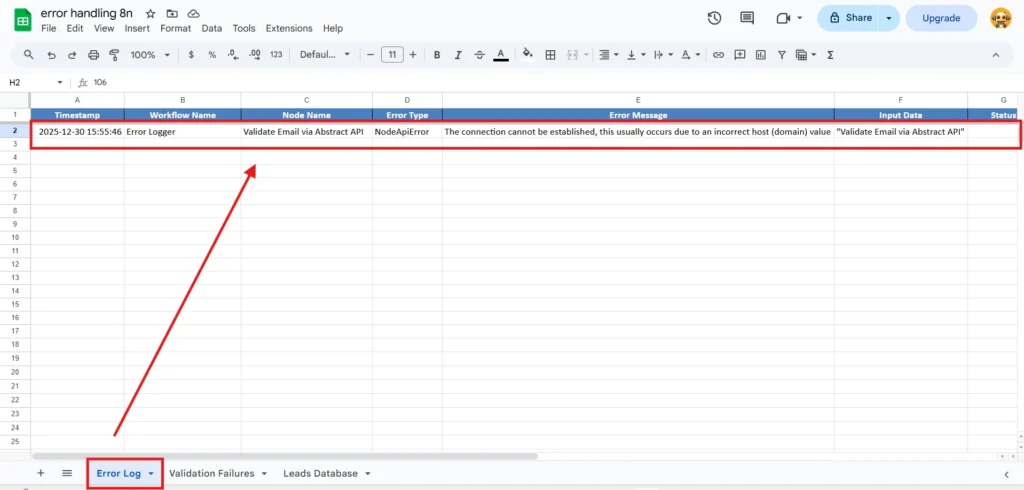
Columns tracked:
- Timestamp
- Workflow Name
- Node Name
- Error Type
- Error Message
- Input Data
- Execution ID
This is where I discovered my Abstract API URL was wrong. Saw three identical errors in a row, all saying “incorrect host (domain) value.” Clicked the error message, immediately spotted the typo.
Without this logging, I’d still be debugging randomly.
Testing the Error Logger
Let me show you this in action.
I kept the Abstract API URL wrong intentionally. Then submitted a test form with valid data—name, email, company, phone number. Everything the workflow needs.
Main workflow executed… validation node failed… and watch what happened:
Main workflow shows error. But Error Logger workflow triggered automatically, completed successfully:
- ✅ Error caught
- ✅ Details formatted
- ✅ Slack alert sent
- ✅ Google Sheets updated
My team got notified within 3 seconds. The error is permanently logged. I know exactly what broke and why.
That’s the safety net every production workflow needs.
Implementing Continue on Fail
But here’s the thing—sometimes you don’t want workflows to stop completely.
Email validation might fail, but you still want to capture that lead for manual review. The data is valuable even if it’s not perfect.
That’s where “Continue on Fail” comes in.
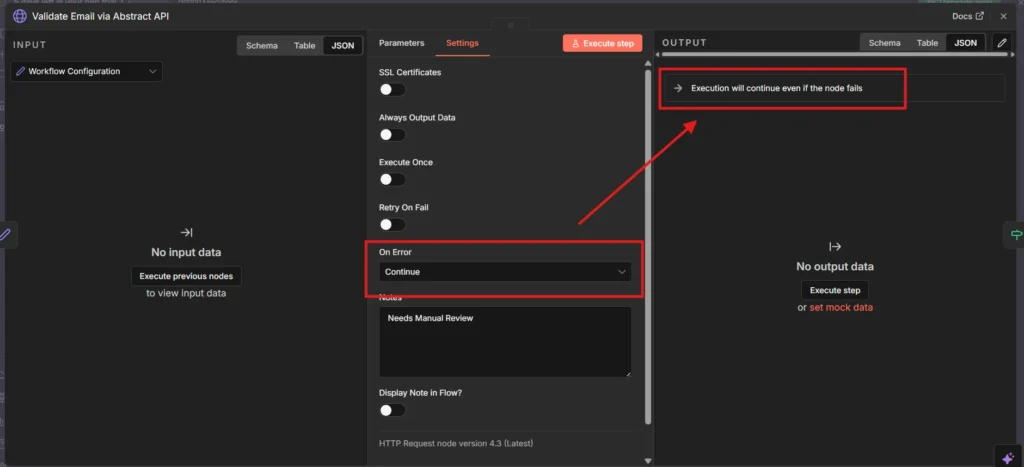
I enabled this setting on my email validation node. Now when validation fails, instead of stopping the entire workflow, n8n marks the node as failed but continues execution.
The error is available in the next node through $json.error. You can check for it and route accordingly.
Conditional Error Routing with IF Nodes
After enabling Continue on Fail, I added an IF node to check: did validation succeed or fail?
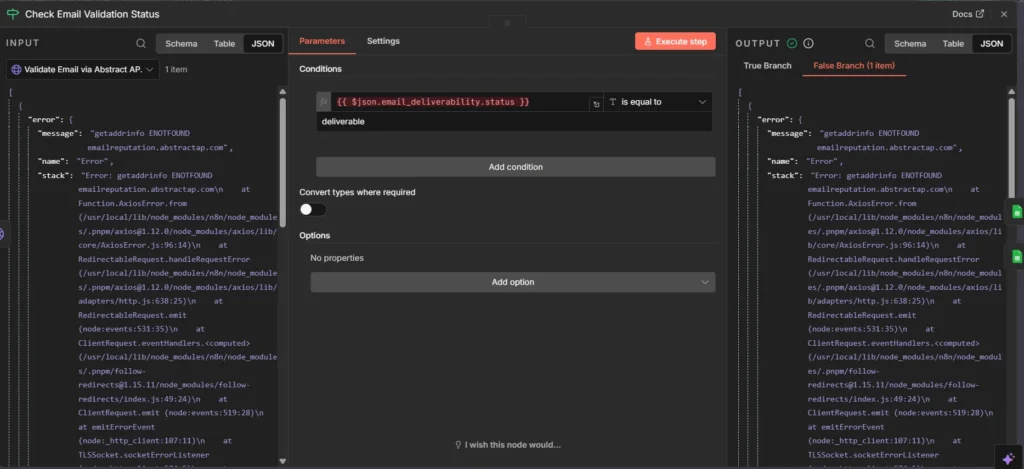
The condition is simple:
{{ $('Validate Email via Abstract API').item.json.email_deliverability.status }} is equal to deliverableIf the email is deliverable → continue normal flow (Slack notification + database save)
If validation failed → route to “Validation Failures” sheet for manual review
Two paths. Same workflow. Handles both scenarios gracefully.
Path 1: Validation Failed
When an email fails validation, it goes to a separate “Validation Failures” Google Sheet:
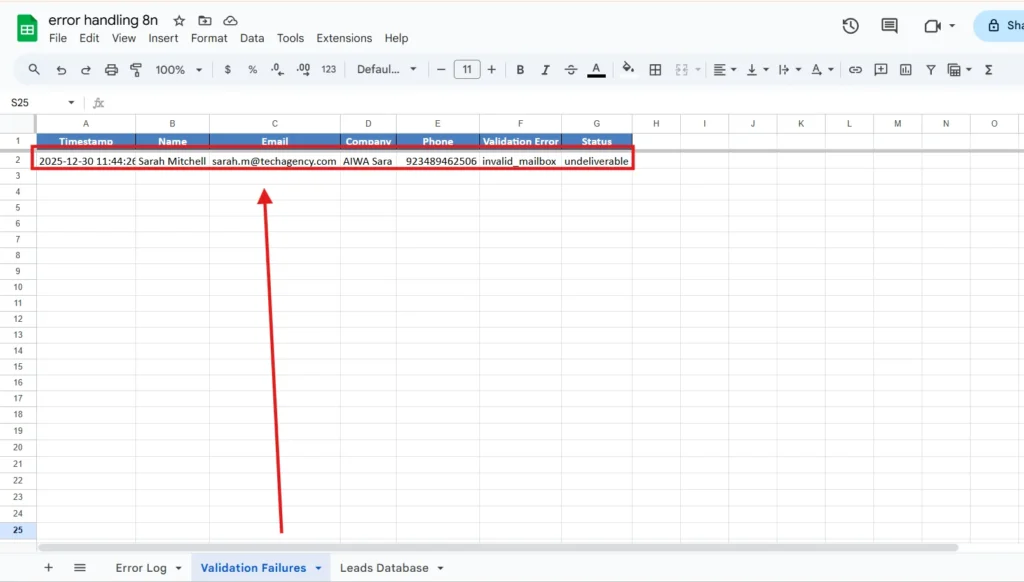
This lead gets saved with:
- All contact details (name, email, company, phone)
- The validation error message
- Status: “undeliverable”
Your team can manually review these. Maybe it’s a typo they can fix. Maybe it’s a spam submission. Either way, you didn’t lose the data.
Path 2: Validation Succeeded
Clean email addresses continue through the normal workflow:
- Duplicate check in Google Sheets
- Slack notification to team
- Save to Leads Database
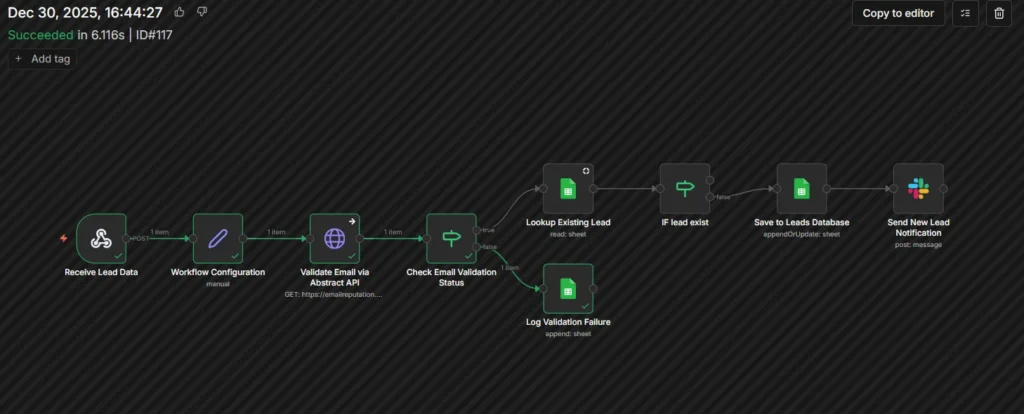
Everything works perfectly when data is good. But the workflow survives when data is bad.
The Three-Sheet Logging Strategy
After running this workflow for a week, here’s why the three-sheet approach is perfect:
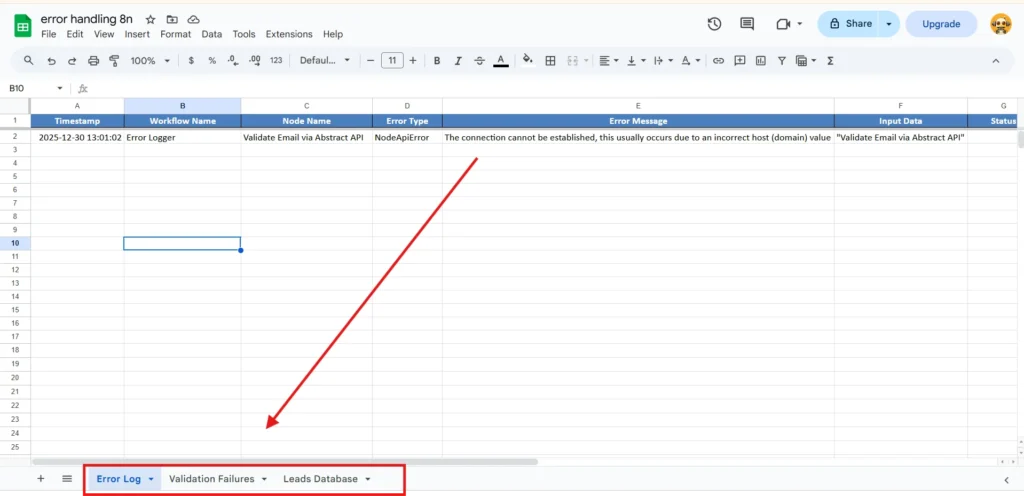
Error Log – System failures
API timeouts, credential issues, network errors. Anything where the infrastructure broke. These are problems you need to fix in the workflow itself.
Validation Failures – Data quality issues
Bad email formats, missing required fields, anything where the submitted data is the problem. These need human review, not technical fixes.
Leads Database – Successfully processed leads
Only clean, validated, complete leads make it here. This is your source of truth.
This separation makes debugging way easier. Error in the middle of the night? Check Error Log first. Lead quality dropping? Check Validation Failures. Want to follow up with new leads? Leads Database has exactly what you need.
Real-World Issues I Hit (And Fixed)
Building this wasn’t smooth. Here are the actual problems I encountered:
Issue 1: Wrong API Endpoint
I copied the Abstract API URL from their docs but didn’t notice they have different endpoints for different services. Used emailreputation.abstractapi.com instead of emailvalidation.abstractapi.com.
Error message: “getaddrinfo ENOTFOUND emailreputation.abstractap.com”
Took 20 minutes to realize the domain was wrong. Error Logger caught it immediately, but I was staring at the wrong part of the workflow trying to debug. Check your URLs carefully—copy-paste isn’t always safe.
Issue 2: IF Node Checking Wrong Field
My first IF node was checking $json.error which doesn’t exist on the Abstract API response. The correct field is $json.email_deliverability.status.
Workflow was routing everything to Validation Failures, even good emails. Fixed by actually reading the API response structure instead of guessing.
Issue 3: Google Sheets Column Mismatch
Created my Error Log sheet with 7 columns. Workflow was trying to write 8 fields. Got “column not found” errors.
Had to go back to the Google Sheets node and make sure every field mapped to an actual column in the sheet. Seems obvious now, but spent 15 minutes confused about why writes were failing.
Why This Matters for Production
Here’s the difference this makes in real business use:
Before error handling:
- Lead submitted at 2 AM
- API times out
- Workflow fails silently
- Lead lost forever
- Team discovers issue at 9 AM when someone asks about lack of leads
- 7 hours of potential leads gone
After error handling:
- Lead submitted at 2 AM
- API times out
- Error Logger catches failure
- Slack alert wakes up on-call person
- They see it’s an API issue, not fixable immediately
- But lead data is logged in Validation Failures sheet
- Manual follow-up happens at 9 AM
- Lead recovered
The difference between losing customers and keeping them.
Common Questions
Q: Does Error Logger slow down workflows?
No. It only runs when errors occur. Your normal workflow executions aren’t affected at all.
Q: Can I use this with n8n cloud or do I need self-hosted?
Both work identically. Error Trigger is a standard node in both versions.
Q: What if the Error Logger workflow itself fails?
I haven’t seen this happen, but you’d need n8n’s built-in error notifications as a final backup. Or a second Error Logger workflow watching the first one (yes, that works).
Q: How do I customize the Slack message format?
Edit the text in the Slack node. It uses standard n8n expressions. Just reference the fields from Format Error Details node.
Q: Can I send errors to email instead of Slack?
Absolutely. Replace the Slack node with Gmail or any email service. Same data, different delivery method.
Next Steps: What to Build On This
Once you have error handling working, here are the natural next steps:
- Add retry logic – Sometimes APIs are just temporarily down. Automatic retries with exponential backoff can fix 80% of errors without human intervention.
- Error classification – Not all errors are equal. Categorize them (Critical, Warning, Info) and route notifications accordingly.
- Error metrics – Track error rates over time. If one API is consistently flaky, you know to find an alternative.
- Automated recovery – For certain error types, trigger automatic recovery workflows. Credential expired? Trigger re-auth flow.
But start here. Get the basics working first. Having any error handling is infinitely better than having none.
Download the Workflows
I’ve exported both workflows as JSON so you can import them directly into your n8n instance:
Main Workflow: [Lead Processing with Comprehensive Error Handling.json]
- Webhook trigger for WPForms
- Email validation via Abstract API
- Conditional routing based on validation
- Slack notifications
- Google Sheets database
Error Logger Workflow: [Error Logger.json]
- Error Trigger node
- Format Error Details
- Slack alerts
- Google Sheets logging
Important: You’ll need to update:
- Your Google Sheets credentials
- Your Slack webhook or OAuth credentials
- Your Abstract API key
- Your webhook URL from WPForms
The structure is ready. Just plug in your credentials and test.
Google Sheets Template
You’ll also need the three-sheet Google Sheets setup. You can either:
- Create manually following the column structure shown in screenshots
- Download my pre-formatted template [here – link to your template]
Make sure column names match exactly what’s in the workflow mappings, or you’ll get “column not found” errors.
Video Walkthrough
I recorded a complete 17-minute walkthrough showing every step of building this:
The video shows:
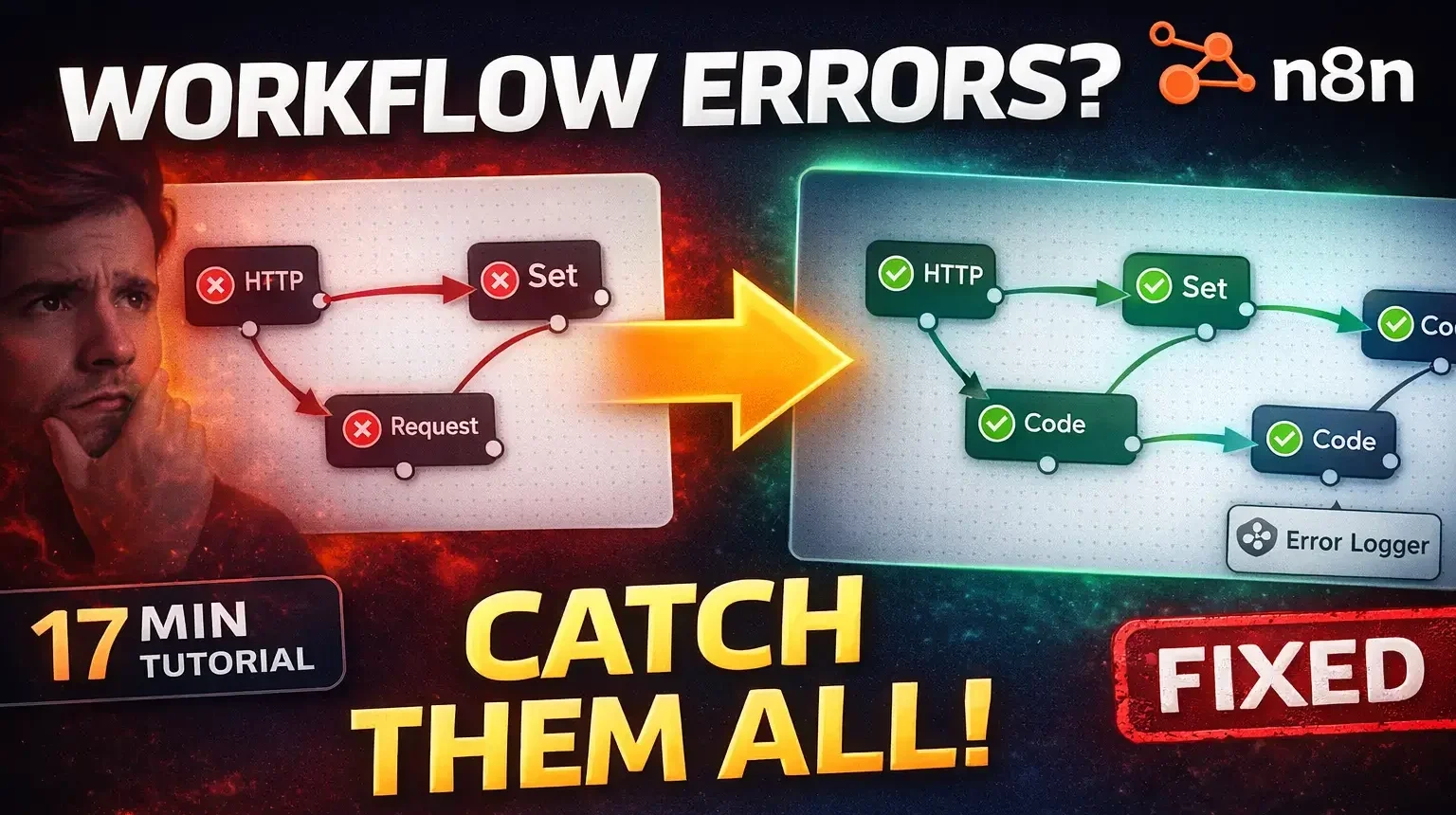
- Breaking the workflow to demonstrate the problem
- Building the Error Logger from scratch
- Configuring Continue on Fail
- Setting up conditional routing
- Testing all error scenarios
- Reviewing the three-sheet logging strategy
If you’re a visual learner, the video will make everything click.
Related Tutorials
If you’re new to n8n or want to expand on this foundation, check out these guides:
- n8n Credentials Management: Securely Connecting Your Apps – Understanding OAuth flows and API key management
- Your First n8n Workflow: Email Notification System – Start here if you’re completely new to n8n
Wrapping Up
Error handling isn’t sexy. It’s not the fun part of building automation. But it’s the difference between a weekend project and a production system.
Your workflows will fail. APIs will timeout. Services will go down. Rate limits will be hit. The question isn’t if—it’s how you handle it when it happens.
Build the Error Logger workflow once. Protect every workflow you create from that point forward. Sleep better knowing your automations won’t silently fail at 2 AM.
And when something does break (because it will), you’ll know immediately, have full context for debugging, and won’t lose any data in the process.
That’s what production-ready automation looks like.
Questions? Drop them in the comments. I respond to every single one.