

AI Lead Detection System in n8n: Auto-Notify Sales Team on Slack
How many hot leads have you missed because you were busy doing… literally anything else? I used to check my inbox every 30 minutes, terrified I’d lose a potential client to slow response time. That paranoia ended when I built this workflow.
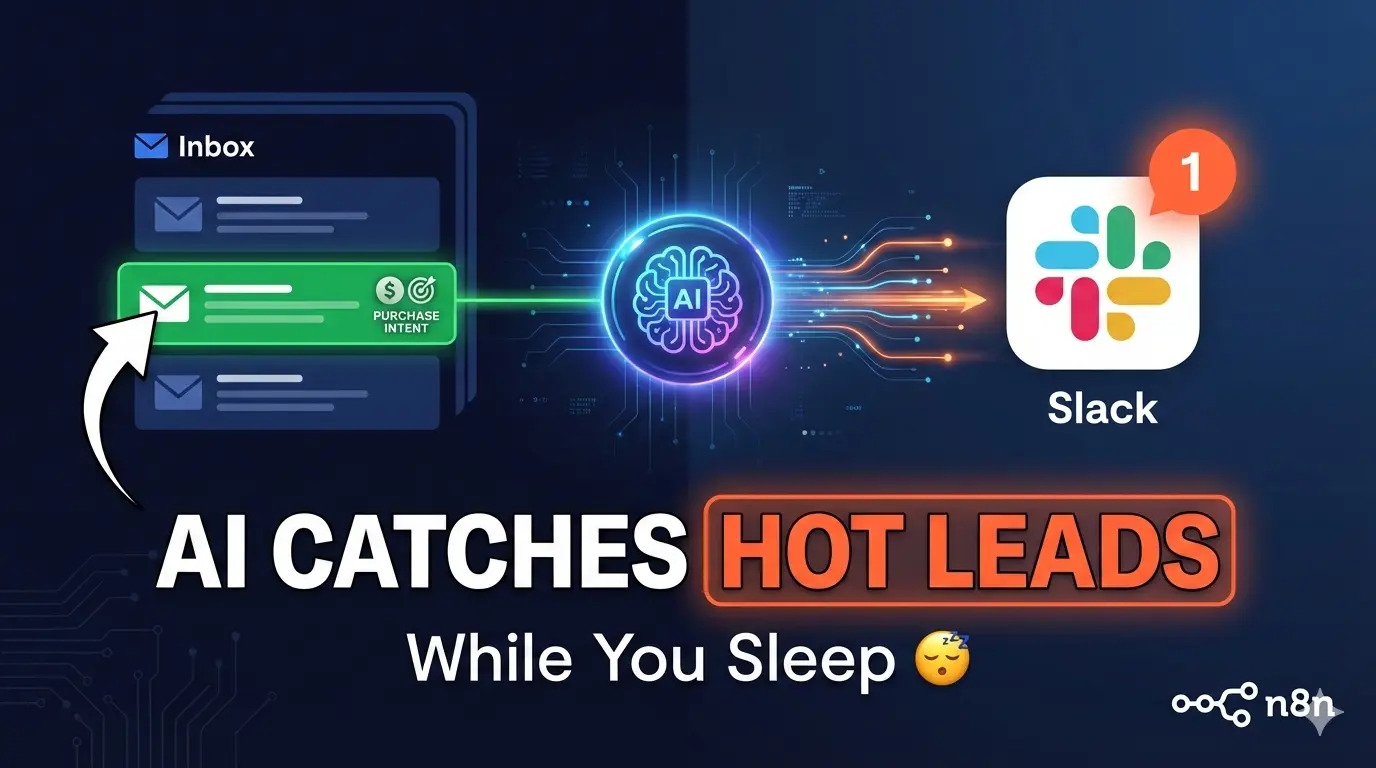
Here’s the thing—I set up an AI-powered lead detection system that reads my contact form emails, figures out who actually wants to buy, and pings my sales channel on Slack instantly. The whole build took me about 20 minutes, and now it runs 24/7 without me lifting a finger.
Let me show you exactly how I did it.
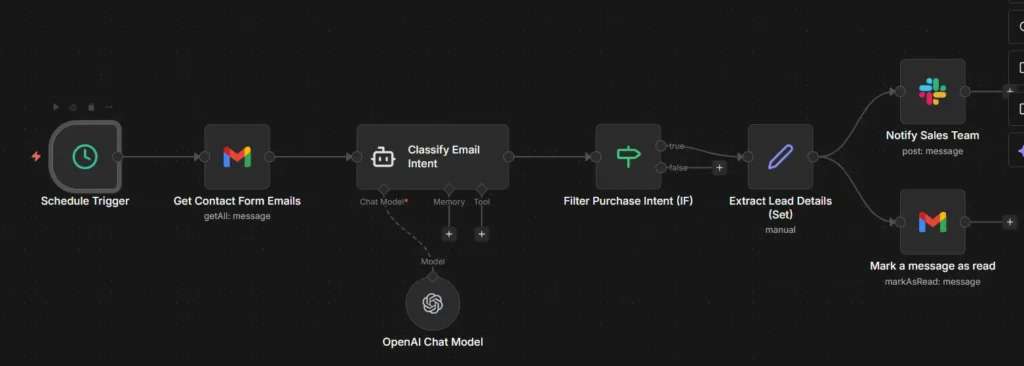
What This Workflow Actually Does
The concept is simple but powerful. Every time someone fills out my website’s contact form, that email lands in Gmail. My n8n workflow checks for new emails every hour, grabs the unread ones, and sends them to AI for classification.
The AI categorizes each email into one of four buckets:
- Purchase_Intent — Someone ready to buy or hire
- General_Inquiry — Questions about tutorials or learning
- Partnership — Collaboration or affiliate requests
- Other — Everything else
Only the purchase-intent emails trigger a Slack notification. The rest? Ignored. No noise, no distractions—just hot leads delivered straight to my sales channel.
What You’ll Need
Before we jump in, make sure you have:
- n8n account (cloud or self-hosted)
- Gmail account receiving contact form submissions
- OpenAI API key
- Slack workspace with a dedicated channel for leads
- About 20 minutes
If you don’t have an OpenAI API key yet, grab one from platform.openai.com. And honestly? Getting all these connected was way easier than I expected.
Building the Workflow
Step 1: Set Up the Schedule Trigger
First, I added a Schedule Trigger node. This determines how often the workflow checks for new emails.
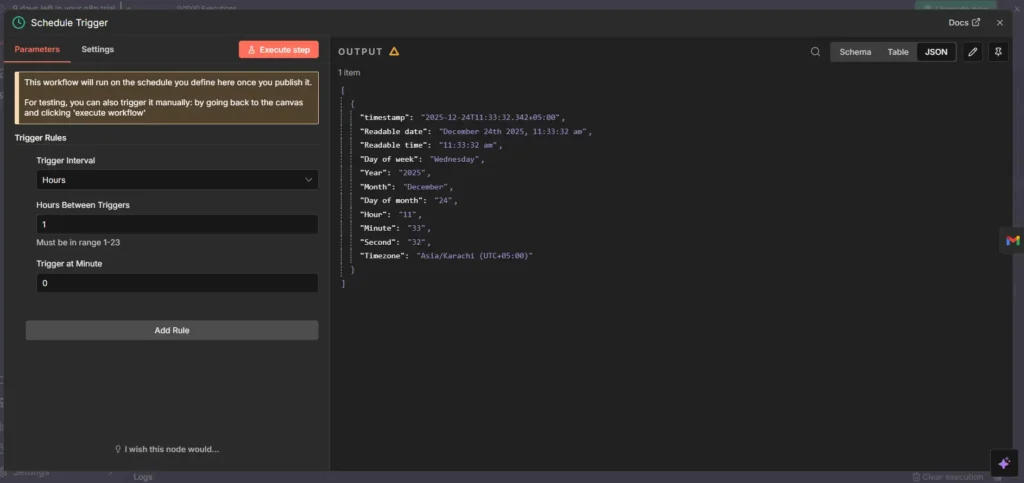
I set mine to run every hour, but you could go more aggressive—every 5 or 15 minutes—depending on your lead volume. For testing, I triggered it manually.
Step 2: Fetch Contact Form Emails
Next comes the Gmail node. This is where I pull unread emails, but here’s the key—I only want contact form submissions, not every random email in my inbox.
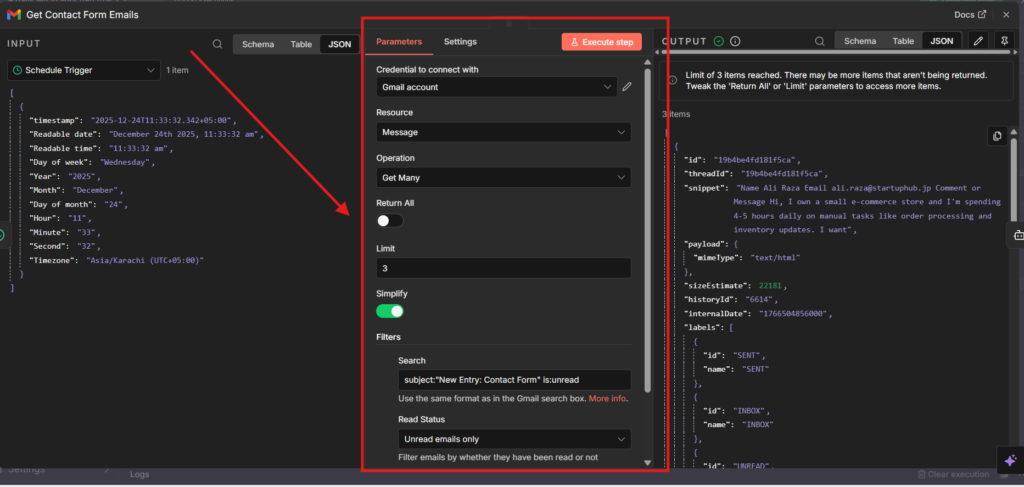
The search query that made this work:
subject:"New Entry: Contact Form" is:unread
This filters out Slack notifications, Google alerts, newsletters—all that noise. Only fresh contact form submissions come through.
Step 3: AI Email Classification
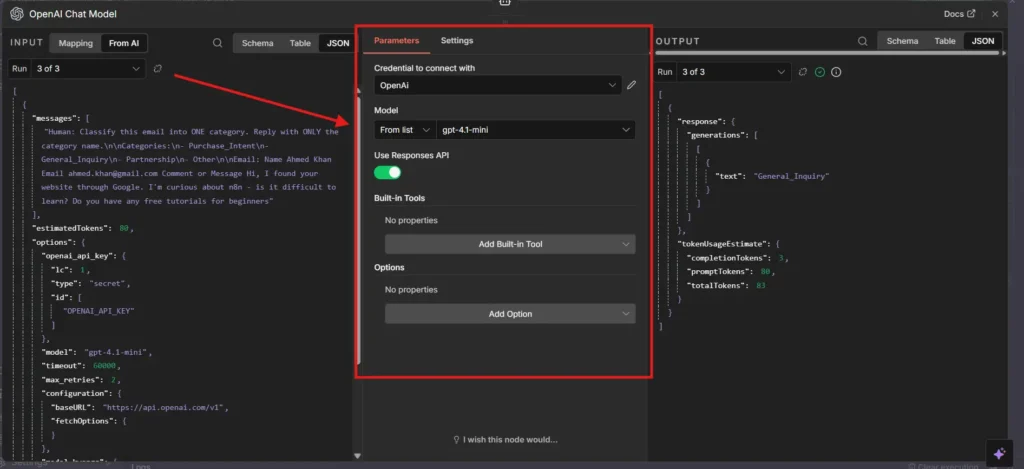
This is where it gets interesting. I connected an AI Agent node that classifies each email’s intent.
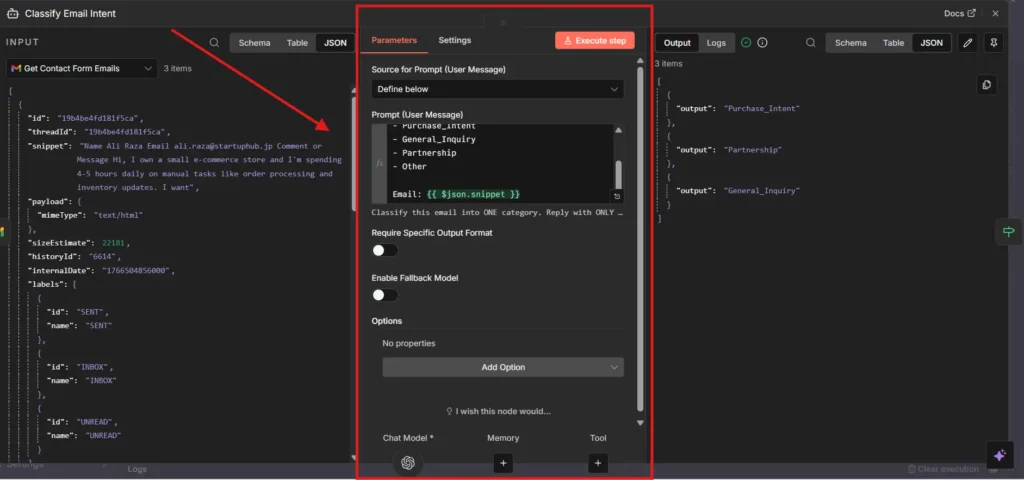
The prompt I used:
Classify this email into ONE category. Reply with ONLY the category name.

Categories:
- Purchase_Intent
- General_Inquiry
- Partnership
- Other

Email: {{ $json.snippet }}
For the AI model, I went with gpt-4.1-mini—cheap enough to run on every email without breaking the bank.
To test this, I submitted three different contact forms on my website:
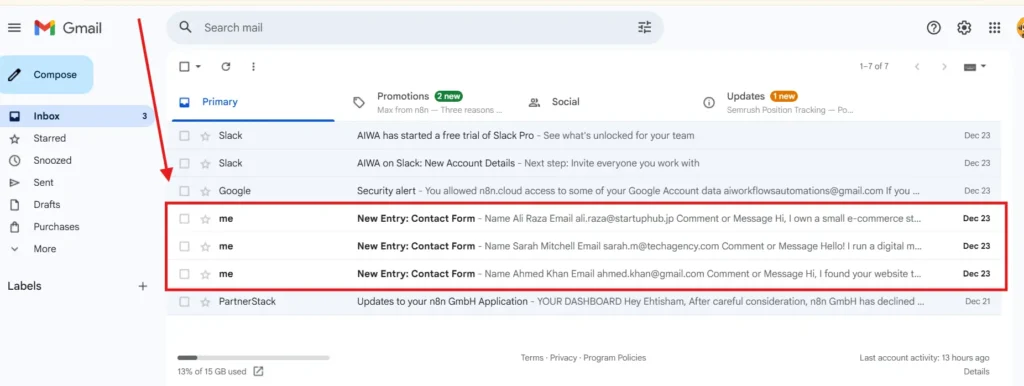
- Ahmed Khan — Asking about free tutorials (General_Inquiry)
- Sarah Mitchell — Wanting a partnership (Partnership)
- Ali Raza — Ready to hire for automation services (Purchase_Intent)
The AI nailed all three classifications. Pretty satisfying to watch it work.
Step 4: Filter Purchase Intent Only
Now I only want Purchase_Intent emails to continue down the workflow. Everyone else gets filtered out.
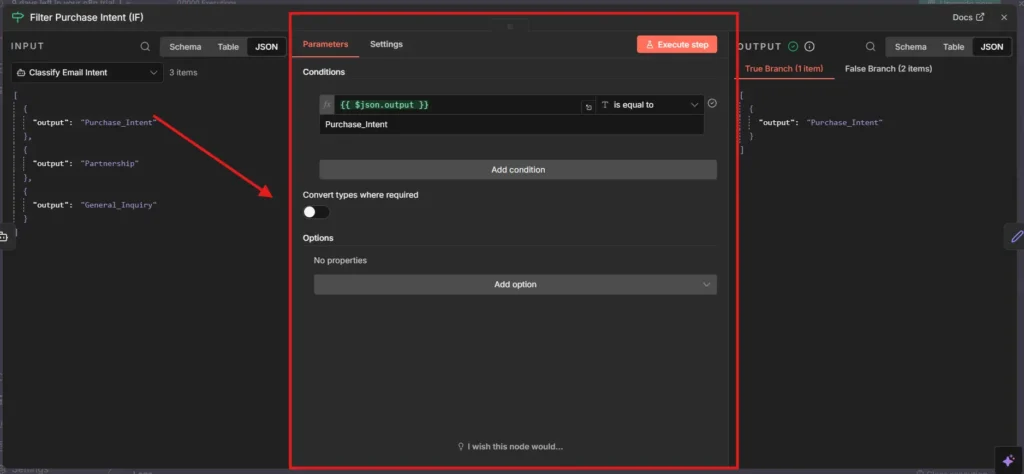
Simple IF node:
- Condition:
{{ $json.output }}equalsPurchase_Intent - TRUE branch continues to Slack
- FALSE branch stops
Out of my three test emails, only Ali Raza made it through. Exactly what I wanted.
Step 5: Extract Lead Details
Here’s something I learned the hard way—when data passes through the AI node, the original email details get lost. So I added a Set node to pull that information back.
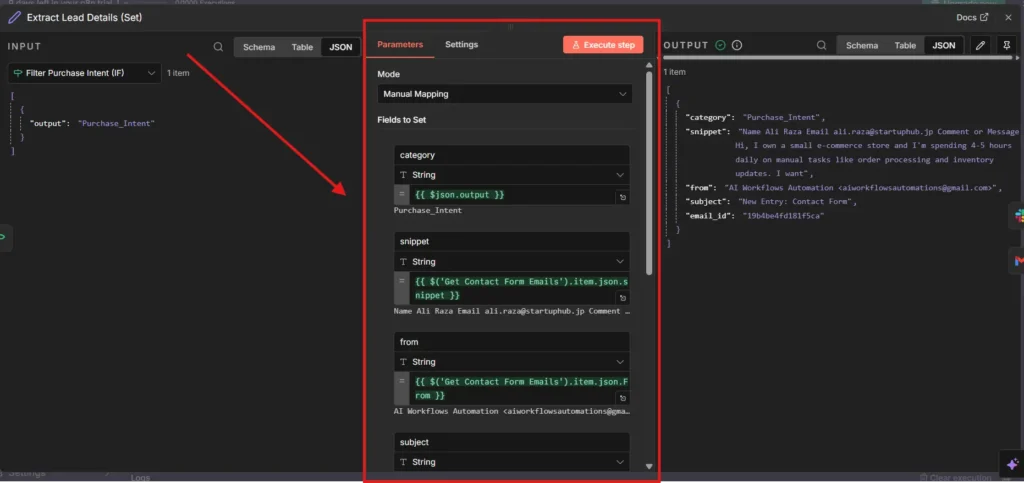
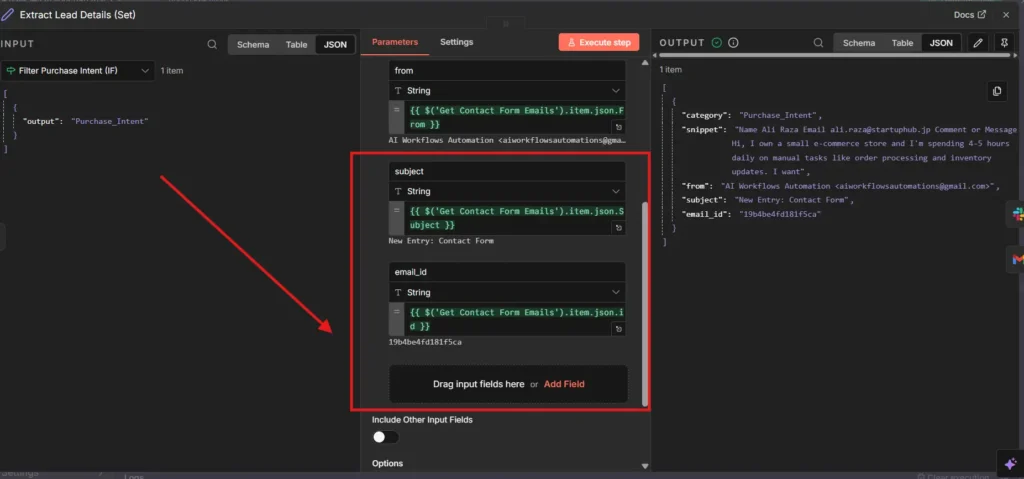
I’m extracting:
- Category (the AI classification)
- Snippet (email preview)
- From (sender info)
- Subject
- Email ID (needed for marking as read later)
Step 6: Send Slack Notification
Now the good part—alerting the sales team.
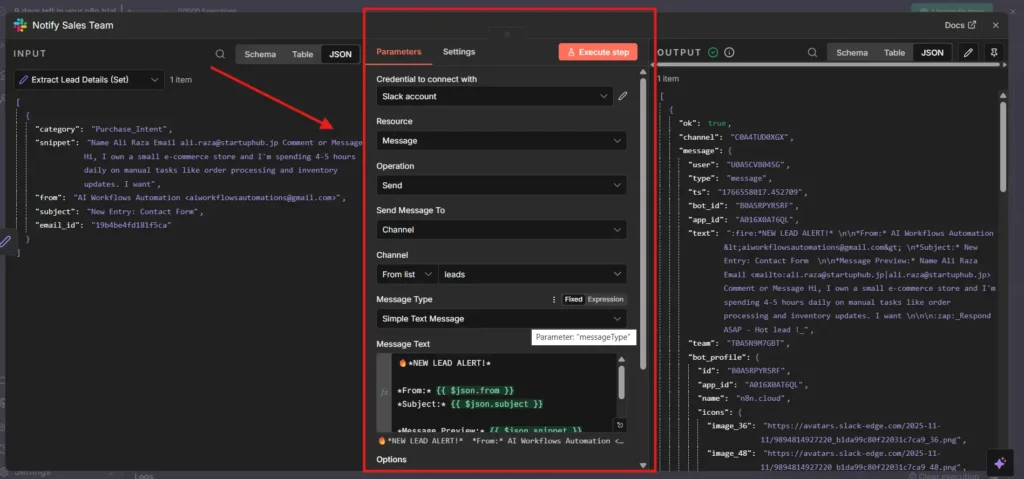
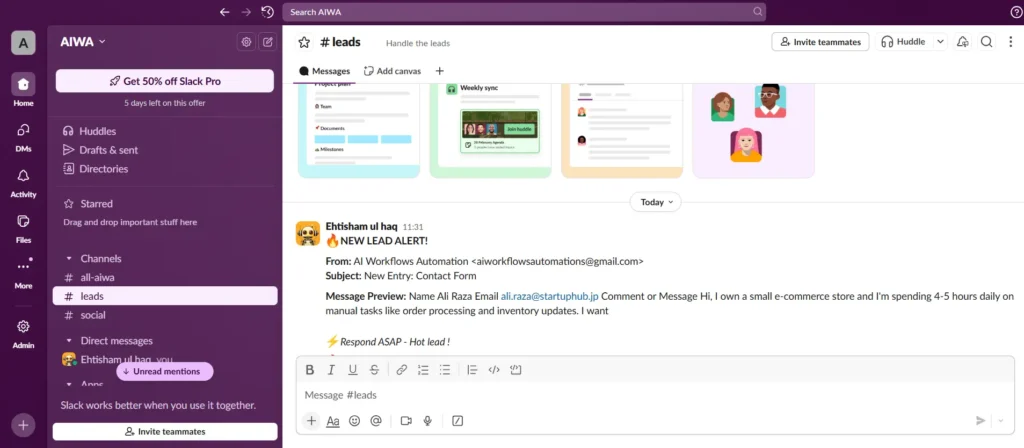
My Slack message format:
🔥 *NEW LEAD ALERT!*

*From:* {{ $json.from }}
*Subject:* {{ $json.subject }}

*Message Preview:* {{ $json.snippet }}

⚡ Respond ASAP - Hot lead!
When this fires, anyone watching the #leads channel knows immediately that someone’s ready to buy.
Step 7: Mark Email as Read
Final step—mark the processed email as read so it doesn’t get picked up again on the next run.
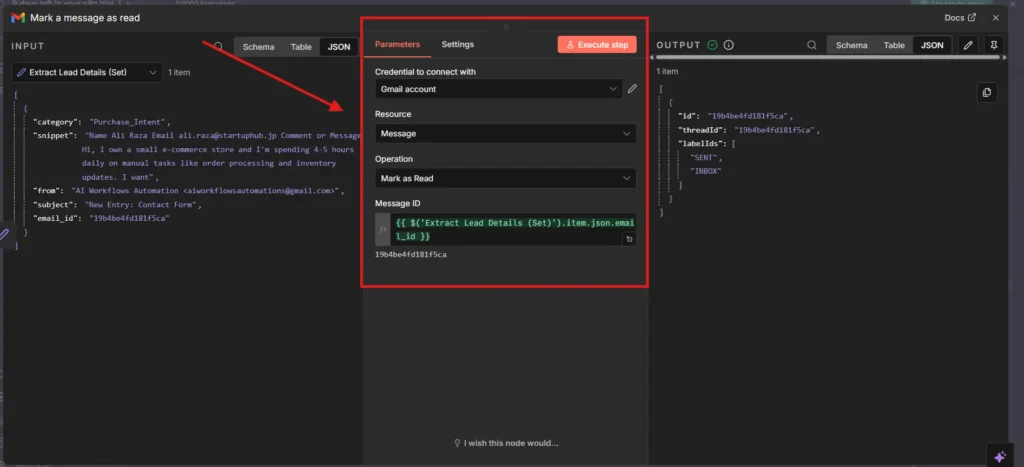
This prevents duplicate notifications and keeps the workflow clean.
🎁 Free Workflow Template
Don’t want to build from scratch? I’ve got you covered.
Download my exact n8n workflow and have it running in 5 minutes:
👉 Download AI Lead Detection Template (JSON)
Just import, connect your credentials, and you’re done. No configuration headaches.
Real-World Use Cases
This same workflow pattern works for:
| Business Type | Use Case |
|---|---|
| Freelancers | Filter serious clients from tire-kickers |
| Agencies | Route hot leads to sales instantly |
| E-commerce | Detect wholesale or bulk order inquiries |
| SaaS | Identify enterprise leads vs. free-tier questions |
| Consultants | Prioritize paying clients over free advice seekers |
What Surprised Me
The entire setup—connecting Gmail, Slack, and OpenAI—was genuinely straightforward. I expected OAuth headaches and API configuration nightmares. Instead, n8n handled most of it with a few clicks.
The AI classification accuracy also caught me off guard. I figured I’d need to fine-tune prompts for hours. Nope. First attempt worked perfectly on all three test emails.
The Bottom Line
This workflow cost me 20 minutes to build and now runs automatically every hour. No more inbox paranoia. No more missed opportunities because I was in a meeting or asleep.
Hot leads get flagged. My team gets notified. Response times dropped from hours to minutes.
📺 Watch the Full Tutorial
Prefer video? I recorded a complete step-by-step walkthrough showing exactly how to build this workflow from scratch: