

n8n Credentials Management: Securely Connecting Your Apps
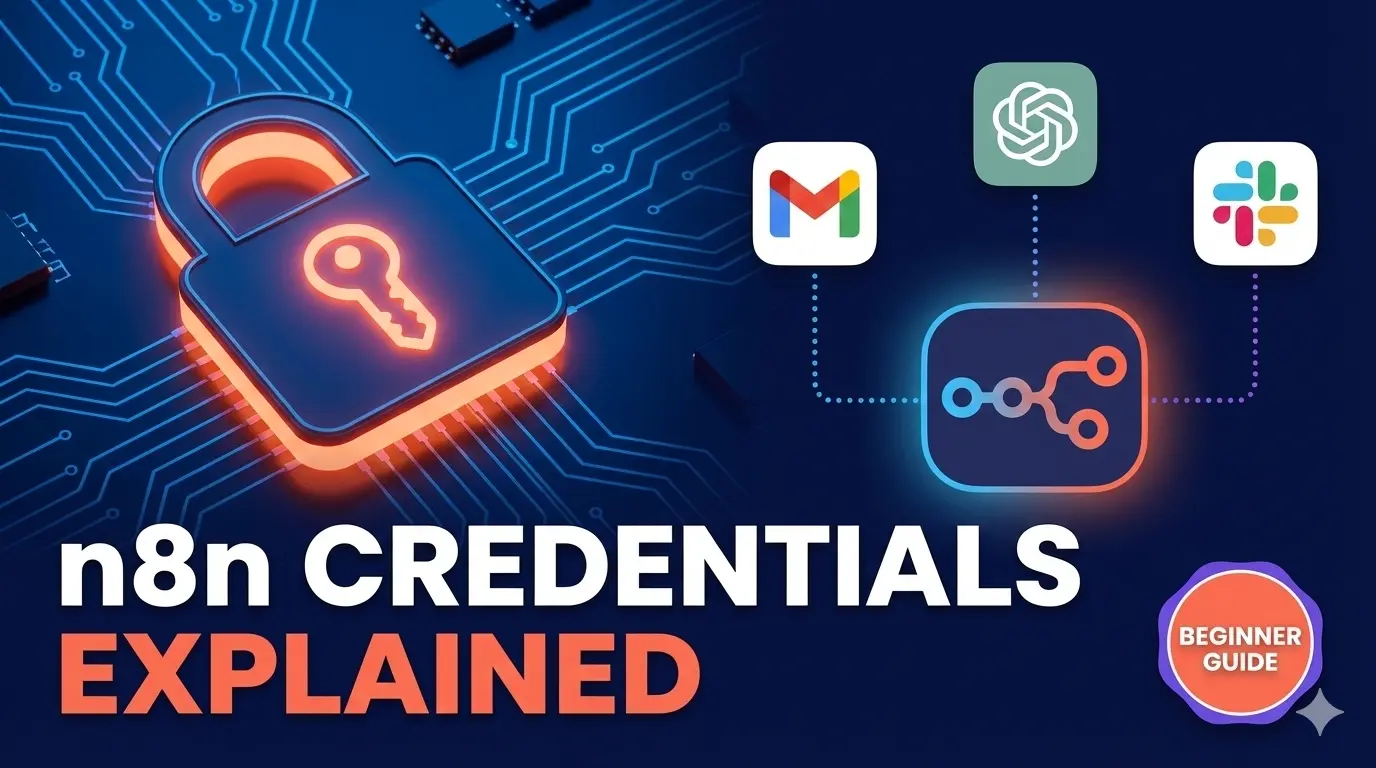
Ever added a Gmail or Slack node to your n8n workflow and wondered why it won’t do anything? That’s because it needs credentials first—your permission to access those apps on your behalf.
I spent 15 minutes setting up credentials for Gmail and OpenAI in n8n, and here’s what I learned: once you understand how credentials work, connecting any app becomes a 2-minute task. Let me walk you through it.
What Are n8n Credentials?
Credentials are secure ways to store login details—like API keys, OAuth tokens, usernames, and passwords—that n8n needs to connect with external services like Google, Slack, or OpenAI.
Think of credentials as a keycard. You create it once, and it opens doors to different rooms (apps) whenever you need access. Without the keycard, you’re stuck outside.
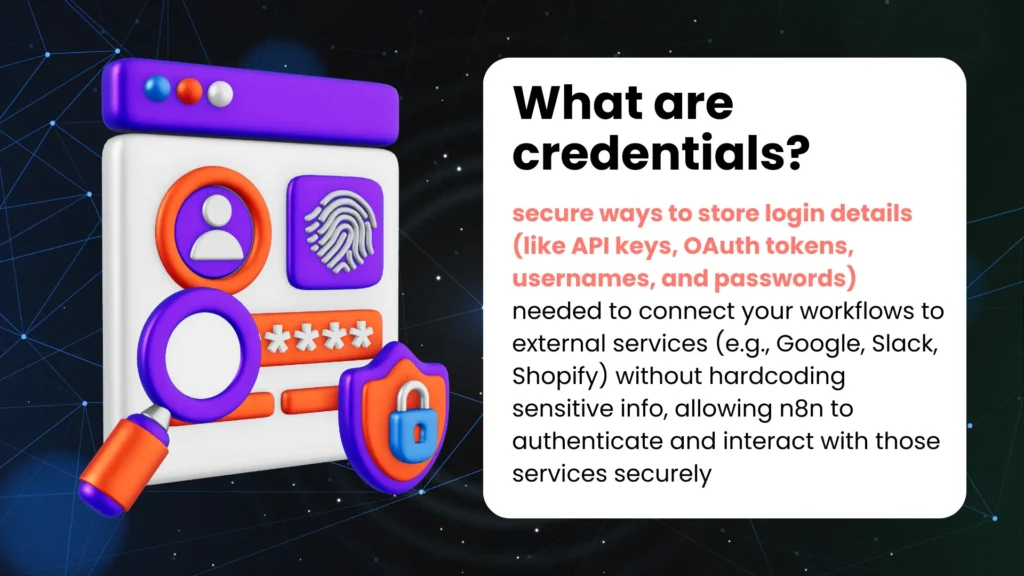
Here’s the thing: n8n stores these credentials separately from your workflows. They’re encrypted, hidden from view, and reusable across multiple workflows. So if you connect Gmail once, every future workflow can use that same connection.
To find your credentials, go to Personal → Credentials in the left sidebar. You’ll see a list of all your saved connections.
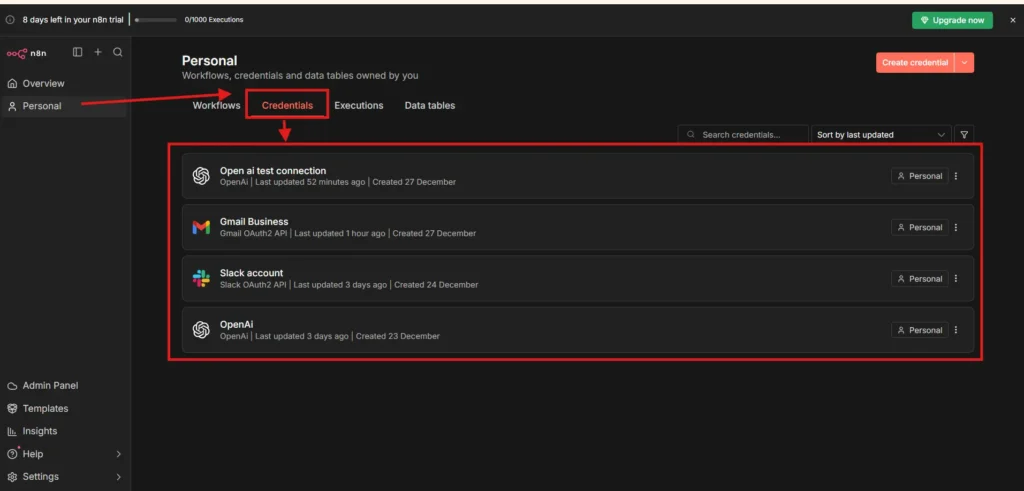
I already have Gmail, Slack, and OpenAI connected here. Notice how each one shows when it was last updated—helpful for tracking which connections might need refreshing.
Why Use Credentials?
Let me show you why credentials matter with a quick example.
I added a WhatsApp node to a blank workflow. The moment I clicked on it, n8n asked me to select a credential. Without one, the node literally can’t do anything—it’s just sitting there, useless.
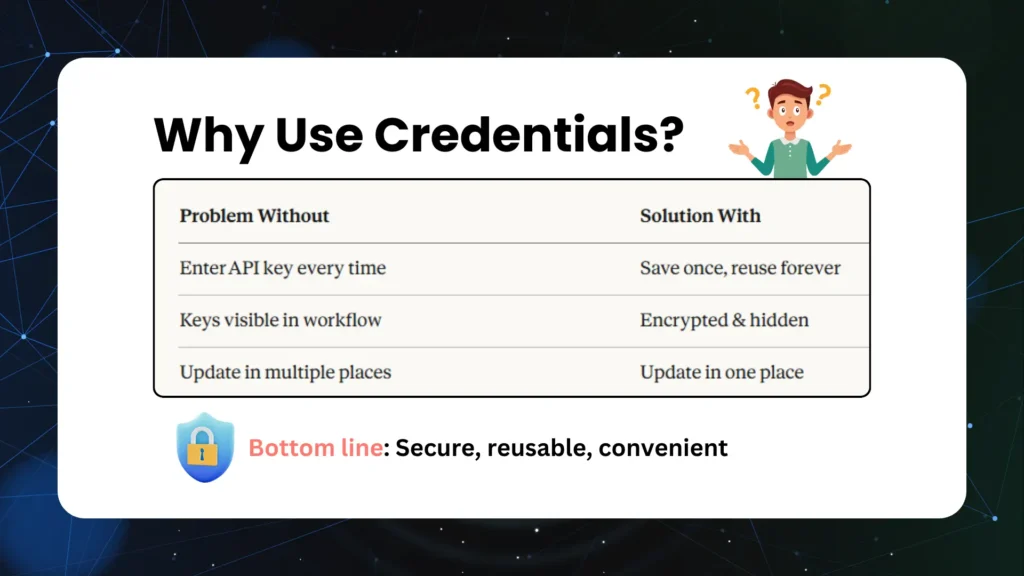
Here’s what credentials solve:
| Problem Without | Solution With |
|---|---|
| Enter API key every time | Save once, reuse forever |
| Keys visible in workflow | Encrypted & hidden |
| Update in multiple places | Update in one place |
Bottom line: credentials make your workflows secure, reusable, and much easier to maintain.
Since I don’t have WhatsApp Business API set up, I switched to Gmail to demonstrate the actual connection process.
Common Credential Types
n8n supports four main credential types. Which one you’ll use depends on the service you’re connecting.
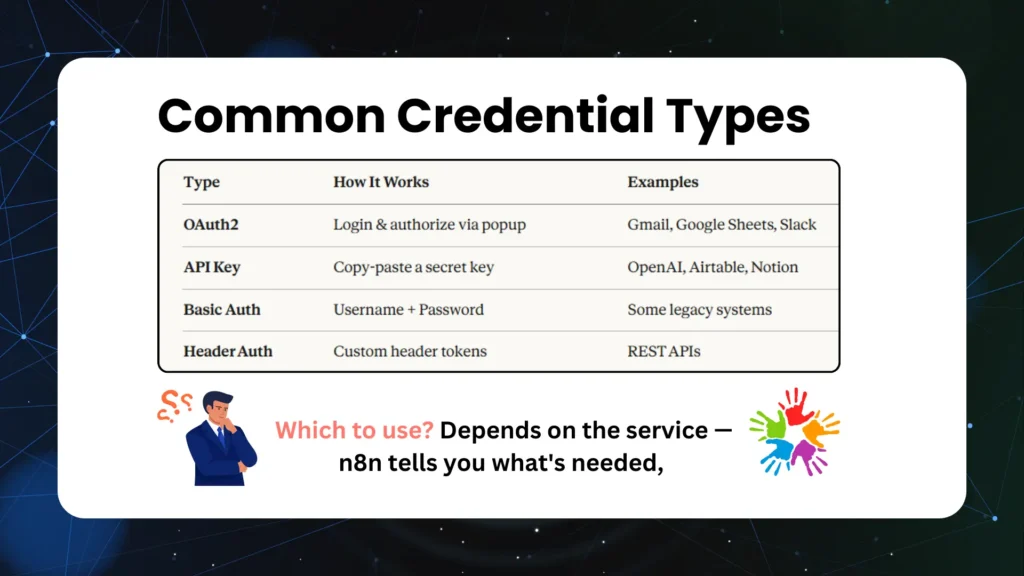
OAuth2 – You’ll see a “Sign in with Google” or similar button. Click it, authorize access, done. Gmail, Google Sheets, and Slack use this.
API Key – You copy a secret key from the service’s website and paste it into n8n. OpenAI, Airtable, and Notion work this way.
Basic Auth – Simple username and password fields. Some older systems still use this.
Header Auth – Custom authentication headers for REST APIs. More technical, but n8n handles the complexity.
The good news? You don’t need to memorize this. When you create a credential, n8n shows you exactly what’s needed.
Setting Up Gmail Credentials (OAuth2)
Let me show you how OAuth2 works with Gmail.
When I add a Gmail node and click “Create New Credential,” n8n opens this setup screen:
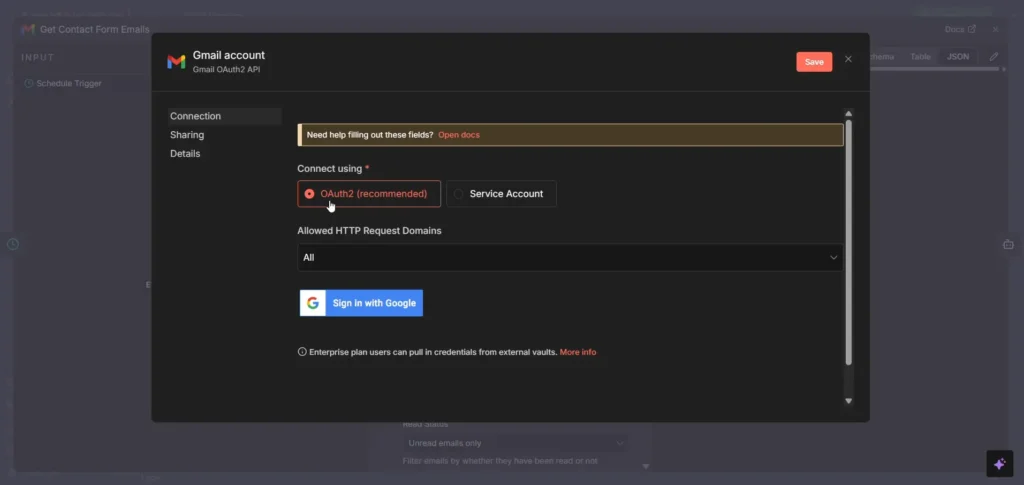
See that “Sign in with Google” button? Click it, select your Google account, grant permissions, and you’re done. The whole process takes under 60 seconds.
What surprised me: once I connected Gmail, I never had to do it again. Every new workflow that needs Gmail access just picks the existing credential from a dropdown. No re-authentication needed.
Setting Up OpenAI Credentials (API Key)
API key credentials work differently. Instead of a login popup, you need to grab a key from the service’s website first.
For OpenAI:
- Go to platform.openai.com → API Keys
- Create a new secret key
- Copy it immediately (it only shows once!)
- Paste it into n8n’s credential form
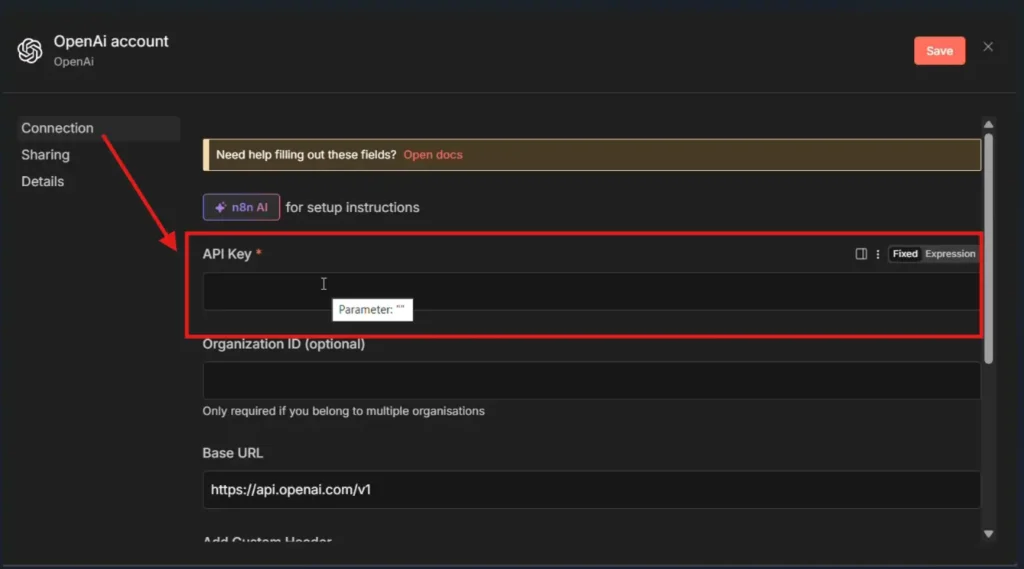
That API Key field is where you paste your secret. Hit Save, and n8n stores it securely. Now any AI node in your workflows can use this connection.
Basic Auth Credentials
Some services use simple username/password authentication. Here’s what that interface looks like:
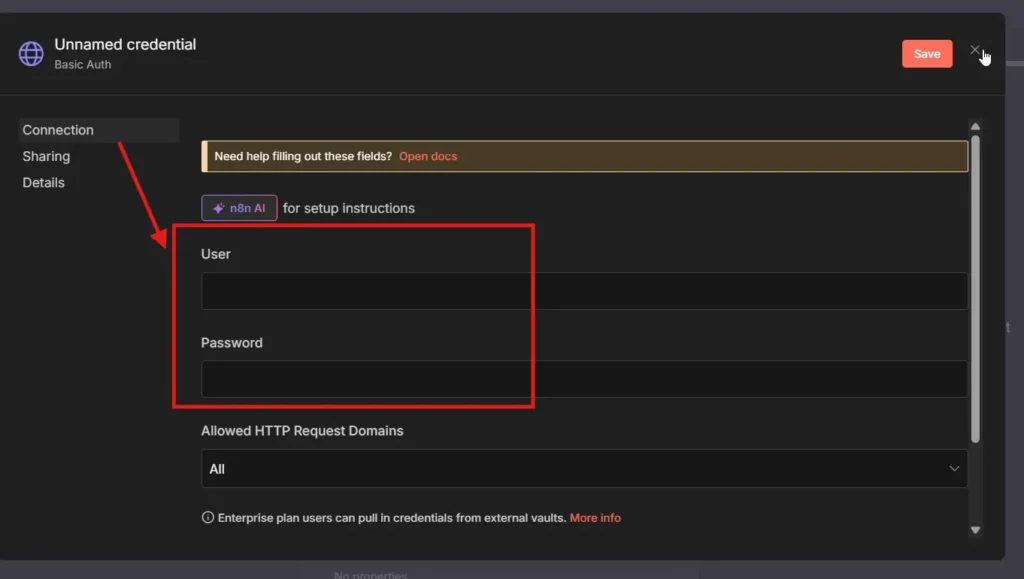
Just fill in the User and Password fields, save, and you’re connected. Not as fancy as OAuth2, but it gets the job done for legacy systems.
Quick Tips for Managing Credentials
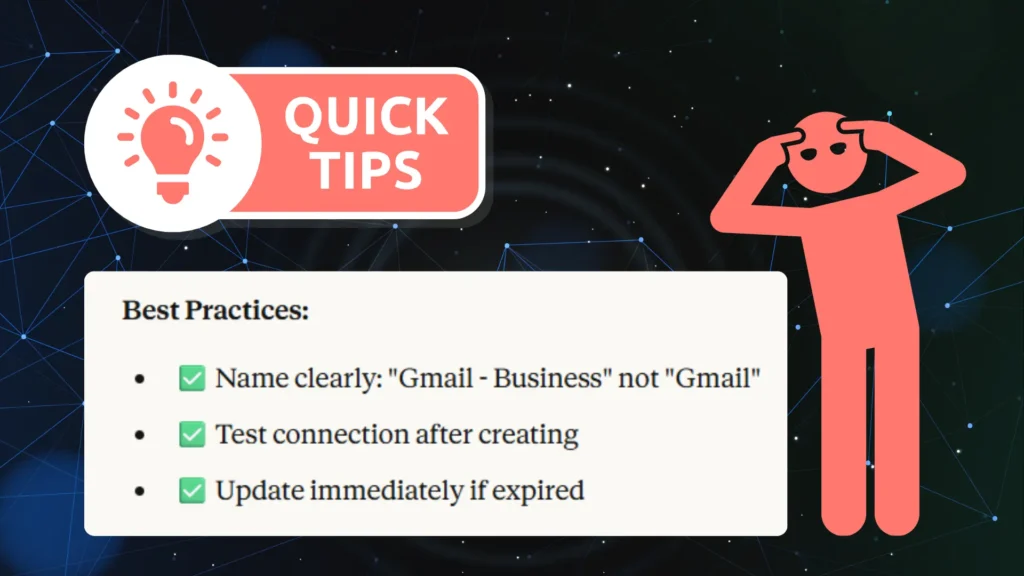
After setting up a bunch of credentials, here’s what I’ve learned:
Name them clearly. “Gmail – Business” is way better than just “Gmail.” When you have multiple accounts, clear names save confusion.
Test after creating. Most credential forms have a test button. Use it. Better to catch issues now than when your workflow fails at 2 AM.
Update immediately if expired. OAuth tokens can expire. If a workflow suddenly stops working, check the credential first.
Common Errors and Fixes
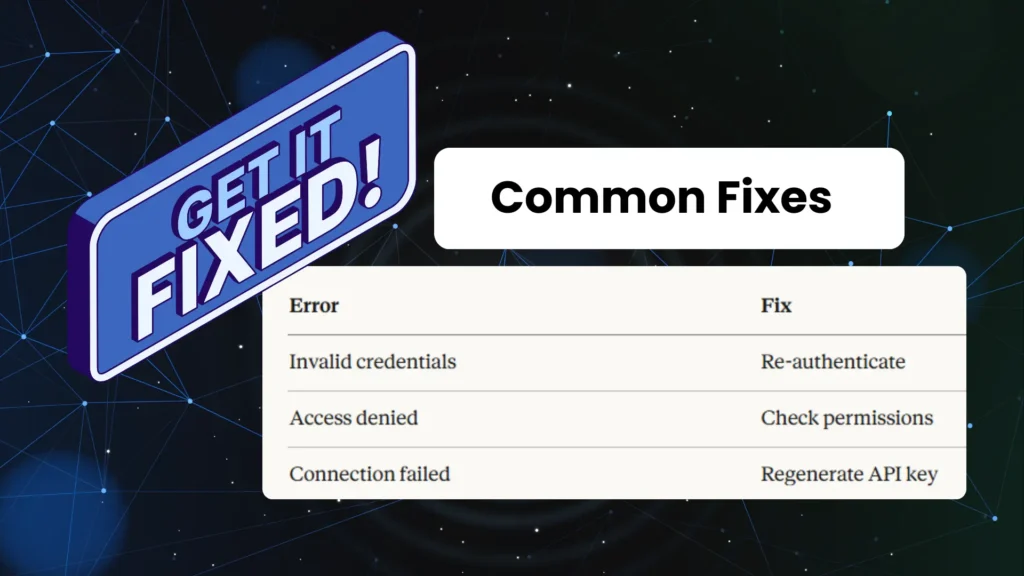
Hit a credential error? Here’s the quick fix guide:
| Error | Fix |
|---|---|
| Invalid credentials | Re-authenticate (delete and recreate) |
| Access denied | Check permissions in the service’s settings |
| Connection failed | Regenerate your API key |
Most credential issues come down to expired tokens or wrong permissions. Start troubleshooting there.
Managing Your Credentials
Back in the credentials panel, you can rename, test, or delete any credential by clicking the three dots menu. I showed this in the video—it’s pretty straightforward.
Pro tip: if you’re exporting workflows to share with others, credentials don’t get exported. This is actually a security feature. The person importing your workflow will need to create their own credentials.
🎬 Video Walkthrough
Want to see this in action? In this 15-minute tutorial, I show you exactly how to:
- Find the credentials panel in n8n
- Connect Gmail using OAuth2
- Set up OpenAI with an API key
- Rename, test, and delete credentials